
Test plans page
Full feature reference for /test-plans. Toolbar, filters, columns, row actions (Run eval / Edit / Delete), status and mode badges, delete cascades, pick-project pre-step, and every nuance worth knowing.
Last updated 2026-08-28
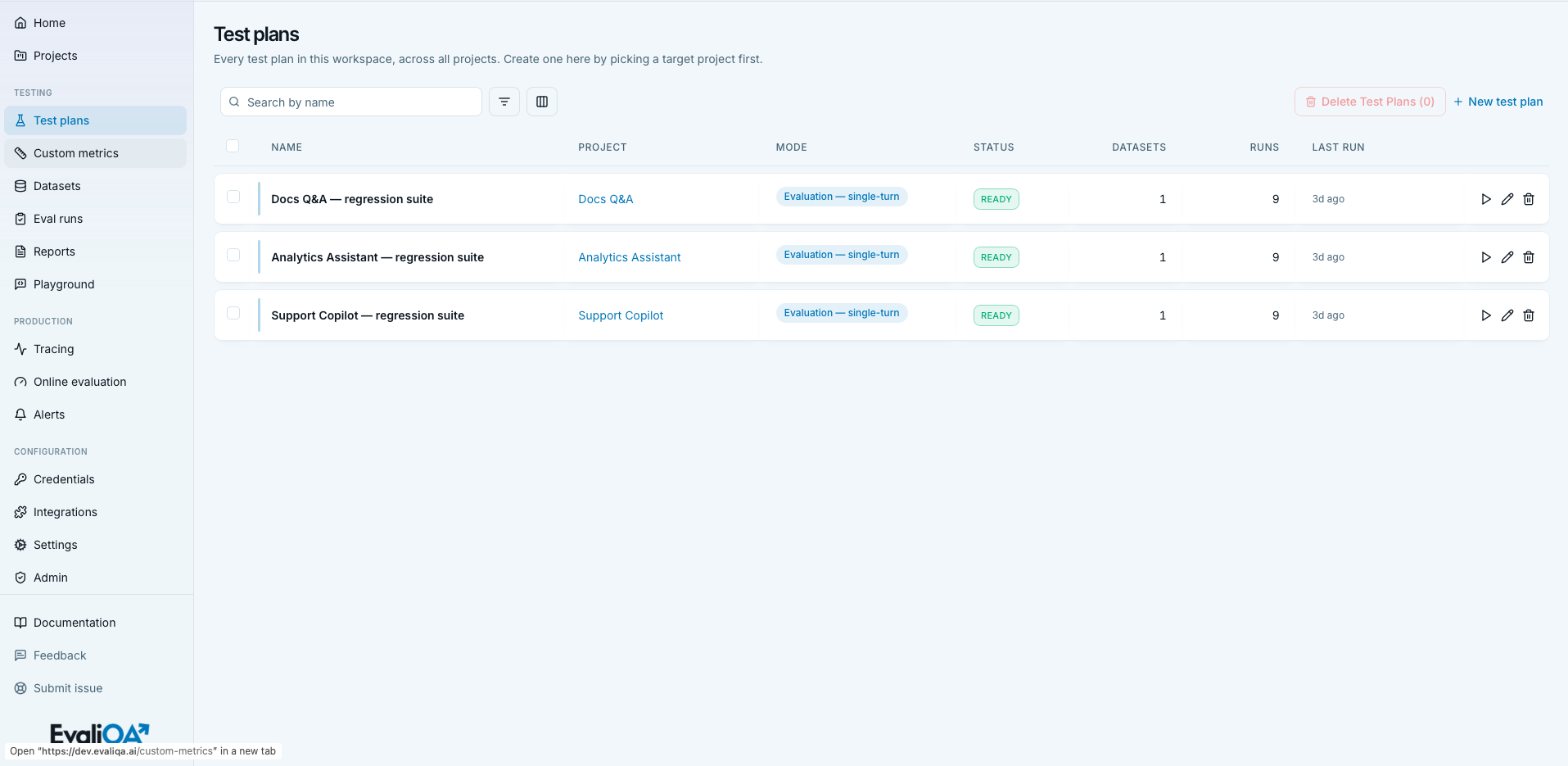
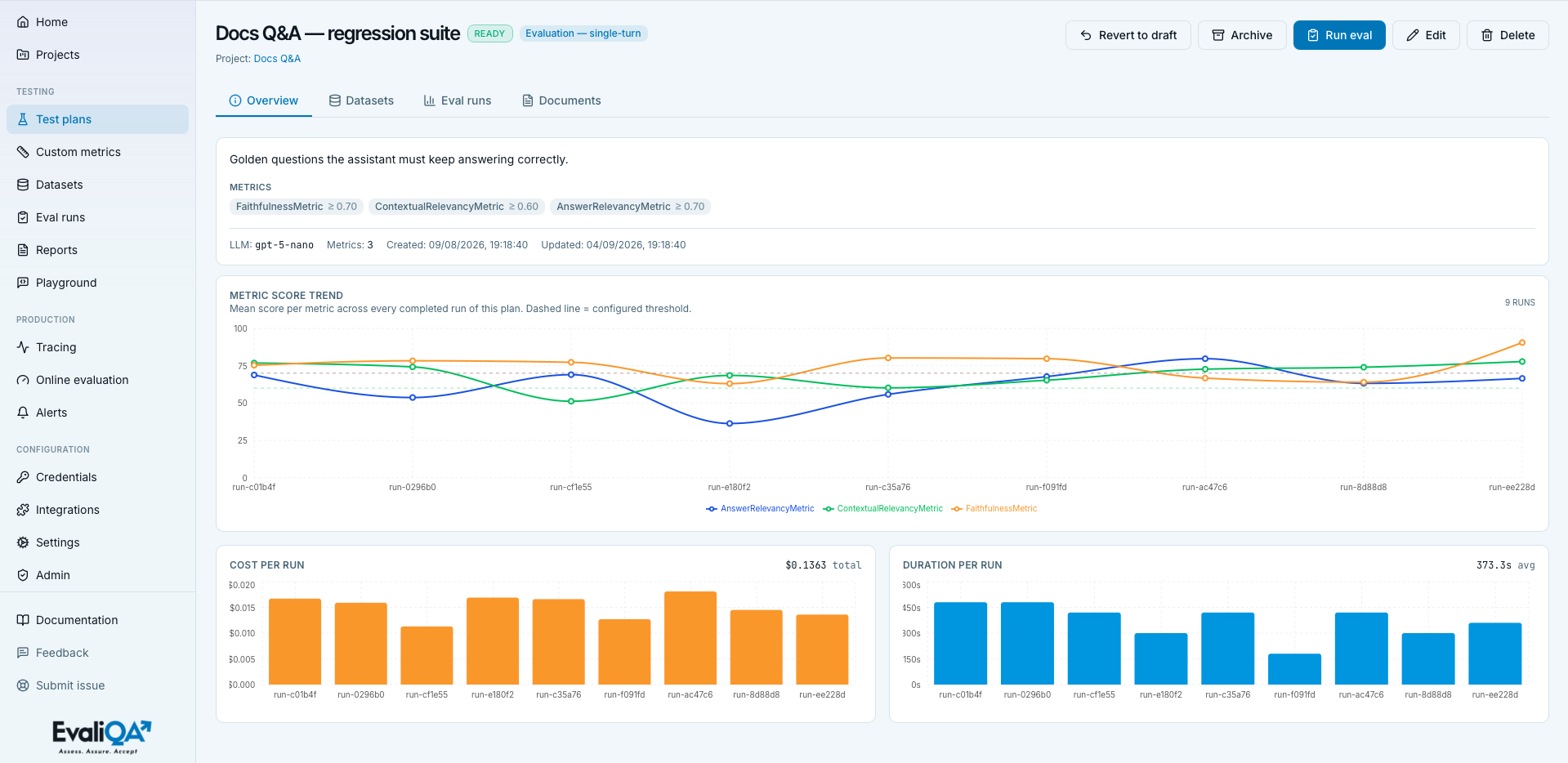
The Test plans page at /test-plans is the workspace-wide list of every test plan across every project. Each row summarises one plan (its mode, status, dataset and run counts) and links to the plan detail page, where you configure metrics, attach datasets, and run evaluations.
The screencast (2:46) runs the whole wizard, mode through metrics and judge, and generates the dataset at the end.
A test plan is the recipe for one evaluation: what to score, how to call the target, which metrics to attach, and which datasets to run against. This UI is the read/manage surface. Creation goes through the plan wizard (a separate multi-step drawer), which is documented end-to-end in Run your first evaluation.
For the methodology of picking a mode, configuring metrics, and interpreting statuses, see Test plans hub and its four mode-specific subpages.
When to open this page
- Between iterations, to run an existing plan on a new dataset version. The row's Run eval icon is right there, no need to open the plan detail.
- To start a new plan, using the toolbar "New test plan" button (see Create flow).
- For triage, filter by Status = Draft to see plans that haven't been marked ready yet, or by Mode = redteam to see just the security-side plans.
The workspace-wide view is the default. If you want plans scoped to one project, open the project and use its Test plans tab (identical table, project column force-hidden, project pre-step skipped when creating).
Header
- Icon and title.
FlaskConical, "Test plans". - Subtitle. "Every test plan in this workspace, across all projects. Create one here by picking a target project first."
- No badges or header buttons. Actions live in the toolbar.
Empty states
Two variants of the EmptyState card, plus an in-table "no matches"
row.
- Workspace has no projects. Title "Create a project first",
description "Test plans live inside a project, you need at least
one before you can define an evaluation.". Primary CTA "Create a
project first" links to
/projects. Hint "You have no projects yet.". A test plan can't exist without a parent project, so the page redirects you upstream before anything else. - Projects exist, no plans yet. Title "No test plans yet". Description differs by scope: workspace-wide reads "Pick a project and open the wizard...", project-scoped reads "Open the wizard to configure your first evaluation for this project.". Primary CTA "New test plan" opens the create flow.
- Filter / search matches nothing. Table renders one centered row: "No test plans match this search / filter combination.".
Loading state is "Loading test plans...". Errors surface as a red banner above the list.
Toolbar
Search input
Placeholder "Search by name". Matches the plan name only, case-insensitively. Description, mode label, and channel are not searched here, use Filters for those.
Filters popover
420 px wide, ListFilter icon, count pill when rules are active.
Rules combine with AND and stack as Where ... And ....
| Column | Kind | Operators |
|---|---|---|
| Name | text | contains, equals |
| Project | project | equals (dropdown of workspace projects) |
| Mode | mode enum | equals |
| Status | status enum | equals (Draft / Ready / Archived) |
| Channel | channel enum | equals (Text / Voice) |
| Description | text | contains, equals |
| Datasets | number | equals, greater than, less than |
| Runs | number | equals, greater than, less than |
Nuances.
- Blank-value rules are silently skipped. A half-typed rule doesn't blank the list.
- In project-scoped view (the Test plans tab on a project's detail page) the Project column drops out of the filter list.
- Mode dropdown lists the four modes with human labels: Evaluation, single-turn, Evaluation, multi-turn, Red teaming, single-turn, Red teaming, multi-turn. Use this to quickly separate red-team plans from evaluation plans, they have different review cadences (see Evaluation pipeline).
- Channel filter distinguishes text (HTTP connector) from voice (phone-call SDK) plans.
Columns popover
240 px wide, Columns3 icon. Name is required and shown as a
disabled row with a "required" tag. Ten optional columns (see
Optional columns). Footer reads
{N} of {total} selected.
Bulk-delete button
Red-tinted outline "Delete Test Plans (N)". Disabled at N=0.
Opens the confirmation cascade sheet (see Delete flow).
New test plan
Text-only brand-colored link with a plus icon. Behavior depends on scope, see Create flow.
Create flow and onboarding hand-off
Clicking + New test plan depends on where you are.
- Workspace-wide
/test-plans. Opens a small pick-project sheet first, title "New test plan", required Project select, helper "You can also open the project's page and add a plan from its Test Plans section.". Continue is disabled until a project is chosen. Continue then opens the wizard. - Project-scoped tab on
/projects/{id}. Skips the picker, jumps straight into the wizard against that project. - Workspace with zero projects. Button is disabled with the tooltip "Create a project first, test plans live inside a project.".
The wizard itself is a nine-step right-side drawer (Basics, Mode, LLM Judge, Metrics, Params, Docs, Dataset, Generate, Review; the LLM Judge step appears only when the Platform AI agent runs on your own credential, on platform credits the platform model is the judge) with AI helpers (Suggest goals, Let AI pick mode, Re-suggest metrics, Fill from goals). Full walkthrough: Build a test plan with the wizard.
Onboarding deep-link. With ?onboarding=1 in the URL, the
create flow auto-opens once projects have loaded. Workspace mode
opens the pick-project sheet with the first project preselected;
scoped mode jumps directly into the wizard. ?onboarding=run is
a no-op on this page, the empty state renders normally so you
can pick a plan and click Run yourself.
Row card
Rows render as floating cards with a brand accent bar on the left and a brand-glow shadow that saturates on hover.
Click behavior
The whole <tr> is role="button" with tabIndex=0. Click,
Enter, or Space navigates to /test-plans/{id}.
The Project column's link is the only in-row escape hatch, it
navigates to /projects/{project_id} and stops propagation.
Quick actions
Three ghost icon buttons on the right edge of every row.
- Run eval (
Play). Opens the Run eval sheet inline. Disabled unless the plan has at least one dataset withstatus = ready, tooltip flips to "Needs a ready dataset first" when disabled. Also disabled if the plan mode isn't runnable (voice modes without the voice feature flag). Details on the Run eval sheet itself (dataset version picker, connector, column bindings, concurrency) live in Run your first evaluation, part 3. - Edit (
Pencil). Opens the same wizard prefilled with the plan's current configuration. Editing scope-heavy fields (like metrics or dataset source) doesn't retroactively change already finished runs, but it does affect the next run you kick off. - Delete (
Trash2). Opens the confirmation cascade sheet.
All three stop click propagation so they don't trigger row navigation.
What's NOT on the row:
- No duplicate action. To clone a plan today, edit it and Save as (not built), or copy configuration manually into a new plan via the wizard. Cloning is on the backlog.
- No status-transition buttons (Mark as ready / Revert to draft / Archive / Unarchive). Those live in the plan detail page header.
Status and mode badges
Every row has two colored pills that let you scan the list without opening it.
Status badge (TestPlanStatusBadge)
- Draft (muted grey border and background). The plan is being iterated on. Runs are allowed, draft is a workflow label, not a gate. Legacy pre-migration rows without a status field render as Draft.
- Ready (pass green,
border-pass/40 bg-pass/10 text-pass). The plan is stable and safe to compare across runs. This is what CI usually points at. - Archived (warn amber,
border-warn/40 bg-warn/10 text-warn). Hidden from default views in some UIs (though this list shows archived plans by default, see Archived plans). Historical runs still work.
These are human signals, not enforcement. Draft does not block Run eval, Archived does not delete anything, Ready does not lock the plan. Their job is to communicate readiness to your team.
Mode badge (rounded pill)
- Red-team modes (
redteam_single_turn,redteam_multi_turn): destructive tint (bg-destructive/10 text-destructive). Red on purpose, red-team runs are release gates and shouldn't be confused with quality metrics. - Eval modes (
eval_single_turn,eval_multi_turn): brand tint (bg-brand/10 text-brand).
Labels come from TEST_PLAN_MODE_LABELS: "Evaluation,
single-turn", "Evaluation, multi-turn", "Red teaming,
single-turn", "Red teaming, multi-turn".
Why the visual split matters. Red-team runs use a completely different scoring model (per-vulnerability breach counts, not metric pass rates) and different alerting thresholds (0% breach is the target for content safety, not 90% pass). See Red teaming, single-turn and Red teaming, multi-turn for the reasoning.
Optional columns
Visible by default (plus the always-on Name / Select / Actions):
- Project. Brand link to
/projects/{id}, stops propagation so you can jump to the project without opening the plan. - Mode. Mode-badge pill (see above).
- Status. Status-badge pill.
- Datasets. Right-aligned count of attached dataset versions. Multiple versions of the same golden set count separately, this tells you how many rounds of dataset iteration the plan has seen.
- Runs. Right-aligned count of eval runs against the plan across its lifetime.
- Last run. Relative time of the most recent finished (or created) run: "3d ago", "never". Great for spotting plans that were set up and forgotten.
Hidden by default (opt in via the columns picker):
- ID. Monospaced, truncated, full UUID in tooltip.
- Description. Italic muted "No description yet." when null.
- Channel. Uppercase muted text (
TEXT/VOICE). - LLM model. Monospaced target-model string,
-when null. Useful when you're comparing plans that intentionally target different models. - Goals. Right-aligned count of goals attached to the plan.
- Created and Last updated. Relative time, full ISO in tooltip. Turn these on for quarterly reviews.
In scoped mode (project detail's Test plans tab) the Project column is force-hidden and can't be toggled back on, everything inside a project shares the same project by definition.
Delete flow
Row and bulk delete share the same confirmation sheet with entity labels "test plan" / "test plans".
Meta line per target shows the plan's name plus " datasets · runs" summary so you can double-check the scope of what you're about to remove.
Cascade summary (numbers summed across every selected plan):
N dataset(s) (every version).N eval run(s) and their traces.
Deletions run in parallel via Promise.allSettled. Partial
failures keep the sheet open, remove succeeded ids from your
selection, and surface "[first error]. N deleted successfully.".
What is NOT deleted by a plan cascade:
- The parent project (untouched).
- Custom metric presets attached to the plan (the plan's inlined copy is gone, but the workspace preset stays).
- LLM credentials (workspace-scoped, never touched by a plan delete).
- Reports generated from runs of the plan (they become orphan
rows on
/reportswith dashes in the plan / run columns; clean those up manually if you don't want the clutter).
Delete is permanent, no soft-delete state. If you want a plan out of the way without losing its history, use the Archive action on the plan detail page instead.
Archived plans
There is no dedicated "hide archived" toggle on this page. Archived plans always appear in the list, visually distinguished by the amber Archived badge in the Status column.
To hide them, add a filter rule: Status equals Draft, or Status equals Ready.
The absence of an auto-hide is deliberate, historical run comparisons often reach into archived plans and hiding them makes that harder. If you have so many archived plans that they clutter the list, delete the ones you don't need to reference.
Interpreting the list at a glance
A few common patterns worth training your eye on:
- Plan with 0 datasets and 0 runs, no status change in a week. Someone opened the wizard, saved a stub, and moved on. Consider deleting.
- Plan with N datasets and 0 runs. Dataset was generated but the plan was never executed. Probably worth kicking off a smoke run to see if the generated dataset even scores correctly.
- Plan with Draft status and 50+ runs. Someone is iterating hard but never promoted the plan to Ready. Fine for experimentation, but if this is a plan CI depends on, mark it Ready so the intent is clear.
- Red-team plan with 0 runs older than a month. Security drift alarm. Rerun.
- Plan with mode = eval_multi_turn but no goals in Goals column. The AI suggesters (mode / metrics / generation) all read goals, without them, the plan's auto-help is weak. Edit and add.
Tips and nuances
- Freeze the judge model across runs you want to compare. The judge is the measurement instrument, changing it makes historical pass rates incomparable. Set it once on the wizard's LLM Judge step and don't rotate it. See Metrics hub, judge model matters.
- Run eval disabled forever? Two common causes: no ready dataset attached, or the plan mode isn't runnable in your workspace (voice modes without the voice feature flag). Attach or generate a dataset on the plan detail page.
- Duplicate plan name error is per workspace, not per project.
You can't have two plans named
Support-bot v2even if they live in different projects. Add project prefix or version suffix. - A plan's dataset shows Generating for hours. Long generation runs are legitimate (500+ rows with a strong Platform AI agent) but if progress stalls, check Admin → Workers for a stuck queue.
- Editing a plan doesn't affect completed runs. Runs are snapshots of the plan config at the moment they started, so historical runs stay reproducible even after you tweak the metrics or thresholds.
- The Runs count includes cancelled and failed runs. Use the Eval runs page with a Status filter to see only completed ones.
- Bulk delete can accidentally take out an active plan.
Filter to
Runs > 0first so you don't nuke plans that other teammates depend on.
Related
- Methodology. Test plans hub, the mode picker and lifecycle explained. Evaluation, single-turn and its three siblings for per-mode methodology.
- The wizard. Run your first evaluation, wizard step by step.
- What plans read and produce. Datasets page, where the attached dataset versions live. Datasets hub, including Golden dataset. Metrics hub and its 5 category subpages, what each metric measures. Custom metrics page, reusable judge presets referenced from a plan's Metrics step.
- Downstream. Eval runs page, where every run of this plan shows up. Reports page, the human-readable write-ups.
- Big-picture. Evaluation pipeline, how test plans fit into CI / nightly / weekly cadences.