Sign up and verify email
Create an account, verify your email, and land on the onboarding checklist inside your first workspace.
Last updated 2026-08-28
This is the first step for anyone new to EvaliQA. In about a minute you go from the register page to a signed-in workspace with a six-step checklist waiting for you. This page walks through every screen you'll see and covers the common snags, expired links, wrong email, joining someone else's workspace.
What signup actually creates
Two things get created the moment you finish registration:
- Your account: an email + password (or a Google / GitHub identity) that you'll use to sign in from now on.
- Your default workspace: every project, dataset, credential, and eval run you create lives inside a workspace, and workspaces are fully isolated from each other. If you joined via an invite link, no new workspace is created, you land inside your colleague's workspace instead. See Accepting an invite below.
You do not need a credit card, and there is no trial timer. The free plan stays free.
Option A: Sign up with email and password
1. Open the register page
Go to /register. You'll see three fields:
- Name: optional. This is the display name that shows up in comments, audit logs, and the workspace member list. You can change it later in Settings.
- Work email: used both as your login and as the address for verification, password reset, and invites. Use an inbox you actually check.
- Password: must satisfy three rules that appear as a live checklist
the first time you submit:
- at least 8 characters,
- at least one digit (0–9),
- at least one symbol (punctuation, whitespace,
!,?,@,., anything that isn't a letter or digit).
Tip: a passphrase like correct horse battery 4! passes on the space + 4 +
!, you don't need a scary looking string.
2. Submit the form
Click Create account. If the email is already registered, you'll see "Email already in use", sign in from the login page instead. Otherwise the form is replaced with a "Check your inbox" screen.
3. Open the verification email
The email arrives within a few seconds from no-reply@… with the subject
"Verify your EvaliQA email". Click the button inside, it takes you to
/verify-email?token=…, which:
- Confirms your address,
- Signs you in automatically,
- Redirects you to /welcome.
If the email isn't in your inbox after a minute:
- Check the spam / promotions folder.
- Confirm the address you typed on the "Check your inbox" screen. If it's wrong, click Wrong email? Start over and re-submit the form.
- Click Resend verification email on the same screen, a new link arrives within seconds and invalidates the old one.
Option B: Sign up with Google or GitHub
If you'd rather not manage another password, click Continue with Google or Continue with GitHub on either the register or login page.
OAuth signups skip the email verification step entirely, Google or
GitHub has already vouched for your address, so you'll land straight on
/welcome.
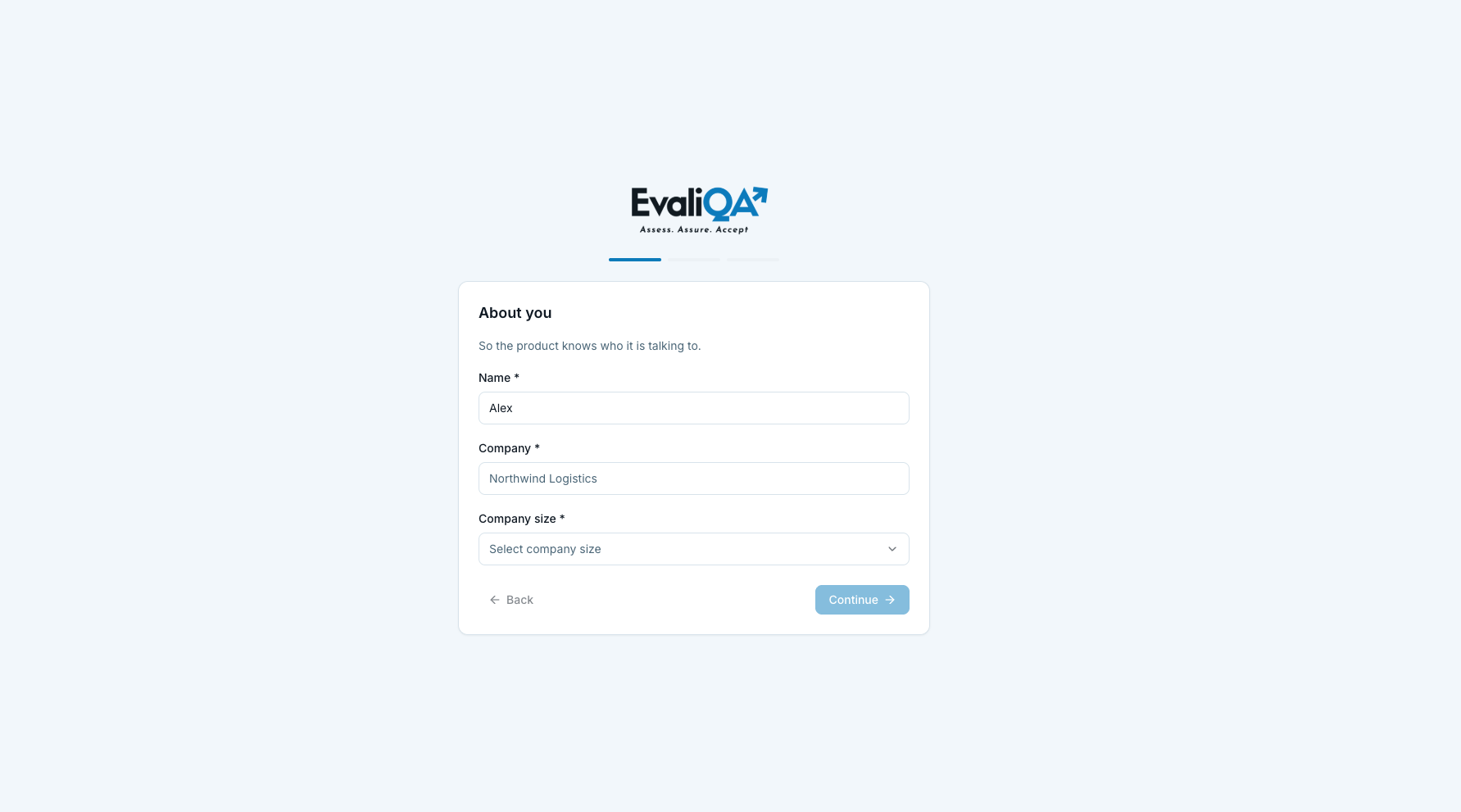
The welcome page
After verifying (or on first OAuth login) you land on /welcome. A short
wizard asks who you are, what you do, and how you want to run evaluations:
on the 5,000 bonus credits every workspace starts with (recommended,
nothing to paste) or on your own LLM key. You can change that later in
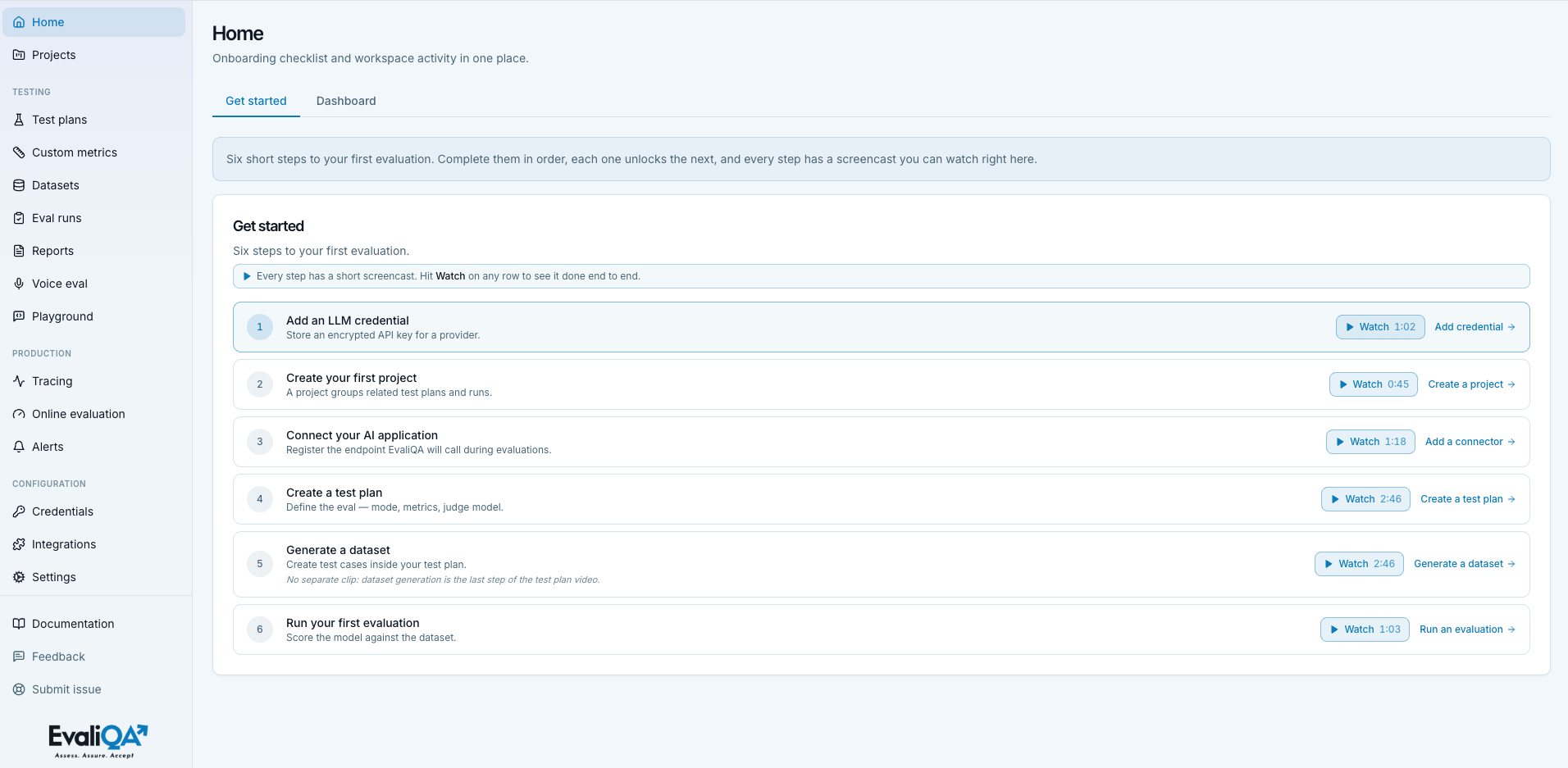
Settings → Platform AI agent. Then comes the onboarding checklist, six
steps on your own key and five on credits, where the credential step is
not needed:
- Credential: a set of API keys for a model provider (OpenAI, Anthropic, …). Only on your own key.
- Project: a folder for the AI product you're evaluating.
- Connector: how EvaliQA calls your agent (optional; skip if you'll only score raw model output).
- Test plan: the definition of what a run does.
- Dataset: the inputs to score against.
- Eval run: press Run, get results.
You have two buttons:
- Start setup: jumps to the credentials page with onboarding hints on. This is the recommended path if you're brand new; the walkthroughs in this section follow the same order.
- Skip for now: takes you straight to the dashboard. You can revisit the checklist any time from the dashboard header.
Accepting an invite
If a teammate already invited you into their workspace, they'll send a link
like https://<your-evaliqa-host>/accept-invite?token=…. Two paths, depending
on whether you already have an EvaliQA account:
- You don't have an account yet. The invite link forwards you to the register page with the invite token attached. Sign up as normal, after you verify your email you land inside their workspace automatically, no extra clicks.
- You already have an account. Sign in first, then open the invite link again. It shows a "Join " button. Clicking it adds you as a member with the role your inviter chose (Admin, Member, or Viewer) and switches you into the workspace.
You can belong to as many workspaces as you like. Switch between them with the workspace picker at the top of the sidebar.
Common problems
"Email already in use" when I try to register. The address is already tied to an account, probably yours from an earlier signup. Go to /login and sign in. If you forgot the password, click Forgot password? to reset it.
The verification email never arrives. Wait one minute, then check spam / promotions. If it's still missing, the outbound mail may be delayed on your side; press Resend verification email on the "Check your inbox" screen or on the login page. If the account was created against a self-hosted EvaliQA where SMTP isn't configured, the verification link is written to the auth service logs, ask your admin.
"Invalid or expired link" when I click the button. The link is single-use and lives for 24 hours. Sign in at /login and press Resend verification email.
I mis-typed my email. On the "Check your inbox" screen, click Wrong email? Start over. Nothing is created until an email is verified, so a mistyped address leaves no lasting record.
"Email mismatch" on the invite page. Your logged-in account uses a different address than the invite. Sign out (top-right menu → Sign out), then either sign in with the right account or register a new one with the invited address.
What's next
You're in. The next step is to give EvaliQA a way to talk to a model provider on your behalf, head to Add your first LLM credential.
Delete your account
Settings, Profile, Delete my account. Password accounts confirm with their password; accounts that sign in with Google or GitHub leave the field blank.
The account is scheduled rather than deleted on the spot: you have 30 days to call it off from the same panel, and a confirmation email goes to the address on the account so a request you did not make cannot pass unnoticed. After that the account goes, together with every workspace where you are the only member, and everything in those workspaces.
If you are the only owner of a workspace other people use, hand it over or delete it first. The panel names the workspaces that are in the way.