Projects page
Full feature reference for the /projects page, the workspace-wide list of AI systems you evaluate. Toolbar, filters, columns, row actions, create/edit drawer, sharing, plan limits, delete cascades, and every non-obvious behavior worth knowing.
Last updated 2026-08-28
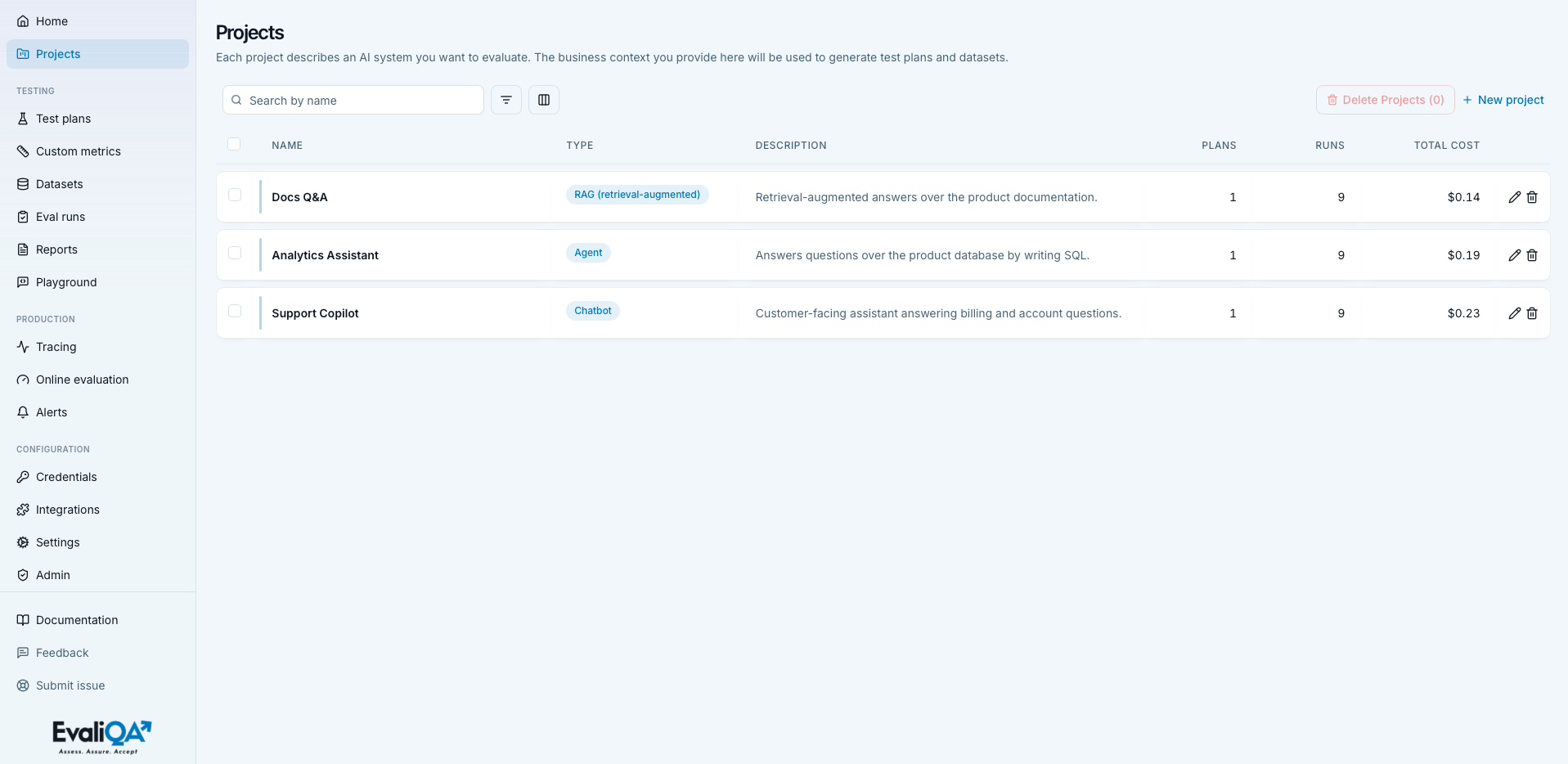
The Projects page at /projects is the workspace-wide list of every AI system you evaluate in EvaliQA. Every row is one project, clicking it opens the project detail page where test plans, connectors, tracing SDK keys, and per-project KPIs live.
Projects are the top-level container for everything else. A test plan belongs to a project, a dataset belongs to a plan (which belongs to a project), an eval run scopes to a plan and project, and production traces from the SDK are tagged with the project's SDK key. If you're evaluating one AI system you'll have one project, and if your company ships several you'll typically have one per system so results stay comparable and don't bleed together.
For the methodology of what a project is, why the Scope fields matter, and how the Context section feeds the AI-assisted test-plan generator, read Create your first project. This page focuses on the UI surface itself, every control, every piece of behavior worth knowing, and how each surface ties back to the concepts.
When to open this page
Three common entry points:
- First-time setup, from the Welcome checklist
after adding your first credential. The checklist deep-links here
with
?onboarding=1and the create drawer opens automatically. - Adding another product you want to evaluate. Every AI product needs its own project so KPIs stay separate.
- Auditing the workspace, spotting projects with no runs (dead) or with runs but no reports (unfinished analysis). The Runs and Total cost columns make this fast.
Header
- Icon and title.
FolderKanban, "Projects". - Subtitle. "Each project describes an AI system you want to evaluate. The business context you provide here will be used to generate test plans and datasets."
- Quota badge on the right, only when your plan has a finite
project cap. Reads
{count} / {max} on {planName}so you can see at a glance how much room you have. On Enterprise / custom plans the badge is hidden. - No header buttons. The primary "New project" action lives in the toolbar below, this is deliberate so that all bulk operations (delete, new) sit next to the filters that scope the list.
Empty states
The table is replaced by an EmptyState card. Three variants,
picked by what's missing:
- No LLM credential yet. Title "Add a credential first",
description "Projects group your evaluations. Before you can
run one, you need an LLM provider credential.". Primary CTA
"Add a credential first" jumps to
/credentials, secondary "Read the docs" opens Add your first LLM credential, hint text "You have no LLM credentials yet.". This is a soft dependency: you can technically create a project without a credential, but you can't run anything on it, so the page nudges you to fix the missing piece first. - No projects yet. Title "No projects yet", description "Create a project to group the test plans and eval runs for one AI system.". Primary CTA "Create your first project" opens the create drawer inline.
- Filter / search matches nothing. Table shows a single centered row: "No projects match this search / filter combination.". Toolbar controls stay live so you can clear the filter and see everything again.
Loading state is a plain "Loading..." card. Errors surface as a red inline banner above the list.
Toolbar

Search input
Placeholder "Search by name". Case-insensitive match against the project name only, description, domain, and language are not searched from here (use the Filters popover instead if you need those axes).
Search is client-side, the full list is fetched once on mount and filtered locally. No debouncing needed, no request per keystroke.
Filters popover
ListFilter icon, 420 px wide. Rules stack as Where ... And ...,
add a rule from the "Add filter" button at the bottom, clear
everything with "Clear all" in the header. The trigger button
turns brand-colored and shows a count pill when any rules are
active.
Available filter columns and their operators:
| Column | Kind | Operators |
|---|---|---|
| Name | text | contains, equals |
| Type | enum | equals (dropdown of the 7 project types) |
| Description | text | contains, equals |
| Plans | number | equals, greater than, less than |
| Runs | number | equals, greater than, less than |
| Total cost | number | equals, greater than, less than |
| Domain | text | contains, equals |
| Languages | text | contains, equals |
Nuances.
- Empty-value rules are silently skipped. A half-typed rule doesn't blank the list, so you can leave a partially edited filter open while browsing.
- Changing a rule's column resets its operator and value. Numeric operators (gt / lt) don't make sense on text columns, the form protects against that.
- Multiple rules combine with AND. There is no OR, if you need "type = RAG OR type = Agent", make two filter rules on different queries or use the columns picker to sort visually.
- Value goes on a new row below the column/operator selects, so long values (URLs, multi-word phrases) actually fit.
Combine filters with column visibility to make triage passes: "show me every project with runs but zero this month" is Filter Runs > 0 + Columns Last updated visible + sort mentally by Last updated.
Columns popover
Columns3 icon, 240 px wide. Name is always visible and rendered
as a disabled checked row with a small "required" tag. Ten
optional columns (see Optional columns) with a
toggle each. Footer reads {N} of {total} selected so you know
how many extra columns you've enabled.
Column choices are per-user and per-workspace; they persist across reloads.
Bulk-delete button
Red-tinted outline reading "Delete Projects (N)". Disabled until at least one row is selected. Opens the same confirmation flow as the per-row delete icon, so the cascade summary tells you exactly what's about to disappear (see Delete flow).
New project
Text-only brand-colored link with a plus icon. Disabled with muted styling and no tooltip when you're at the plan cap (see Plan-limit banner). Opens the create drawer.
Row card
Every row is a floating card with a brand accent bar on the left that saturates on hover. Selected rows tint every cell brand/5 so the selection is visible even when you scroll.
Click behavior
The whole <tr> is role="button" with tabIndex=0. Click,
Enter, or Space navigates to /projects/{id}. The checkbox,
action icons, and any in-row links (Project cell in child pages,
say) stop click propagation so you can select, edit, or delete a
row without accidentally opening it.
Right-edge action icons
Two ghost icon buttons on every row:
- Edit (pencil). Opens the create drawer prefilled with the project's current values. Same drawer as Create / edit drawer, just seeded.
- Delete (trash). Opens the confirmation sheet with the cascade summary. Same sheet as bulk delete, but with a single target.
There is no per-row Share action or Run action. Sharing lives on the project detail page (Share button in its header); running lives on the test plan page (Run eval button). This keeps the list scannable, the row is for selection and navigation, not in-place editing beyond name/scope tweaks.
Header checkbox behavior
The header checkbox selects only the currently visible rows, not the whole workspace-wide dataset. That's on purpose: if you filtered to "Type = RAG" and hit select-all, you're selecting RAG projects, not accidentally including the Agent projects the filter hid. The indeterminate state renders when partial (some selected, some not).
Optional columns
Ten toggleable columns. Default visible unless noted otherwise.
- Type (default visible). Brand-tinted rounded pill with the
human label (RAG, Agent, Chatbot, Classifier, Summarizer, Voice
bot, Other). Reflects the
typefield set in the create drawer. See the type list on the create-project walkthrough. - Description (default visible). Truncated muted text. Falls back to italic "No description yet." when empty, that grey fallback is a good visual signal to open the row and add Description + Scope, since generated test plans and datasets read from those fields.
- Plans (default visible). Count of test plans attached to the project. Right-aligned tabular numbers.
- Runs (default visible). Total eval runs across all plans in the project. Zero here on a project older than a week is usually a signal: either the plan wasn't wired to CI, or the person who created it moved on.
- Total cost (default visible). USD across all runs.
Formatted:
$0.00when zero,$X.XXunder $100, integer with thousands separators above. This is total spend across every plan in the project's lifetime, not this month. - ID (hidden by default). Monospaced UUID, truncated, full value in tooltip. Useful when you need to reference a project in a support ticket, from the SDK, or via the trigger API.
- Domain (hidden by default). The industry / subject you set
on the project ("e-commerce", "healthcare"), or
-if empty. - Languages (hidden by default). Monospaced uppercase chips
(
ENESRU). Empty =-. If your project has five languages set, the AI generators produce roughly equal amounts of each, so this column is worth glancing at when auditing why a run's dataset feels off. - Created (hidden by default). Relative time (
3d ago), full ISO in tooltip. - Last updated (hidden by default). Same format as Created. Turn this on when doing quarterly reviews to spot stale projects.
Turn on ID + Last updated + Domain for audit-style views, turn on Plans + Runs + Total cost for triage.
Create / edit drawer
Right-side sheet, wider than most (sm:max-w-2xl up to
xl:max-w-4xl). Title flips between "New project" and "Edit
project"; subtitle: "Describe the AI system you want to
evaluate. The more context you give, the better the generated
test plans will be.".
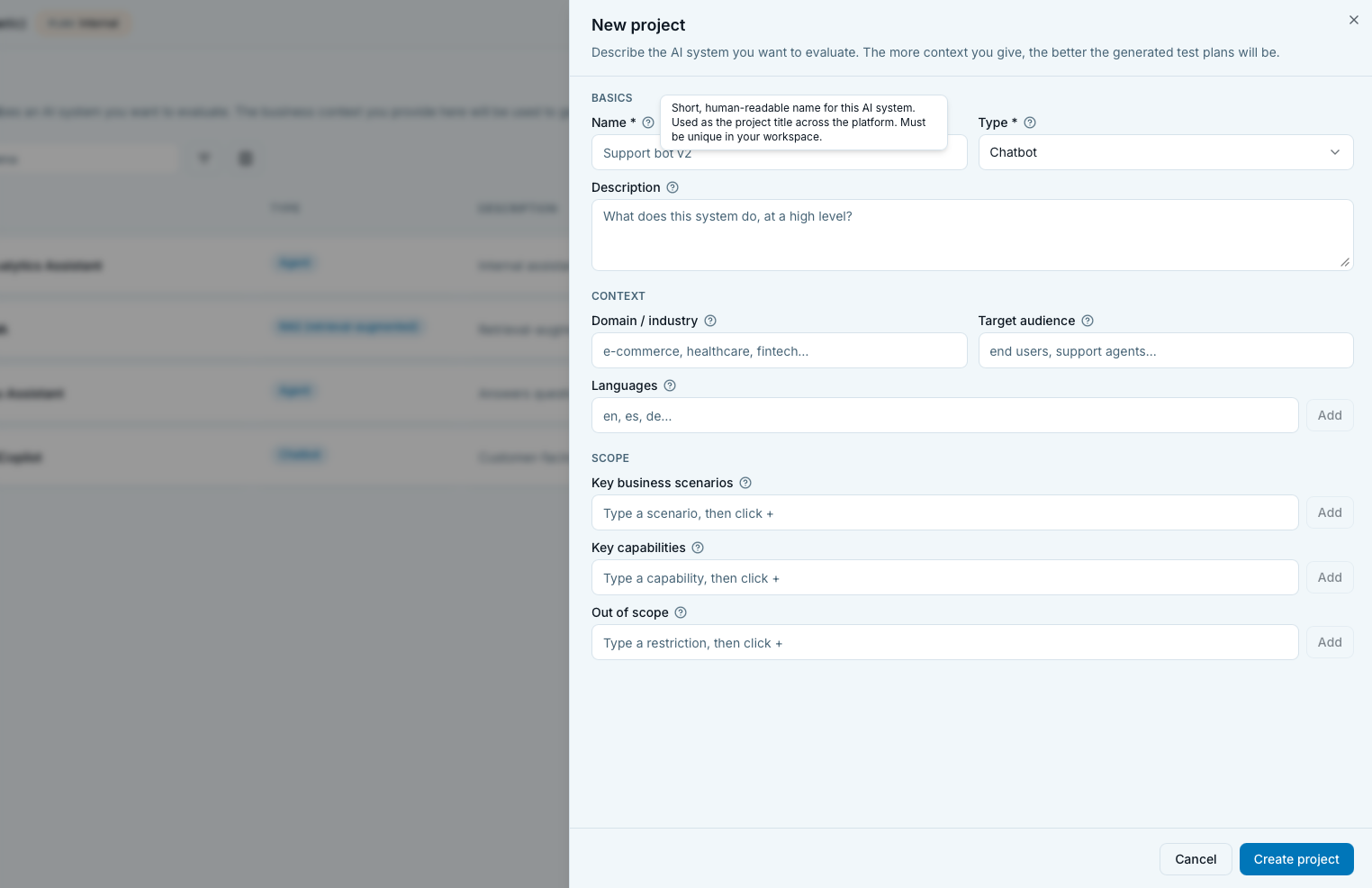
The drawer has three sections. Every field is described with its methodology in the getting-started walkthrough; the UI reference below covers types, limits, defaults, and the non-obvious quirks.
Basics
- Name (required, max 120 chars). Placeholder "Support bot
v2". Must be unique in the workspace. Duplicate names
return a 409 from the API and surface inline as "Name is
already in use in this workspace.". Add a suffix (
-v2,-staging,-eu) or delete/rename the old project first. - Type (required). Select from RAG (retrieval-augmented),
Agent, Chatbot, Classifier, Summarizer, Voice bot, Other.
Default
CHATBOT. Type is a hint, not a constraint, you can attach any test plan mode to any project type. What it does is steer the AI test-plan generator: retrieval quality for RAG, tool-use correctness for Agent, intent accuracy for Classifier. - Description (optional, max 4000 chars). Two-row textarea that grows on focus. This is the single most important free-text field for the AI test-plan generator later. A thin description produces generic test cases; a rich one produces specific ones. Worth spending three minutes on the day you create the project.
Context
- Domain / industry (optional, max 200 chars). Placeholder "e-commerce, healthcare, fintech...". Drives domain-specific terminology and compliance considerations in generated tests (PII in healthcare, pricing rules in e-commerce).
- Target audience (optional, max 500 chars). Placeholder "end users, support agents...". Shifts tone and edge cases in generated inputs (clinicians tolerate jargon, end users don't).
- Languages (optional). Chip input. Type an ISO code (
en,es,de,ru), press Enter. Add as many as you support. Generated tests will be written in these languages, including code-switched cases when more than one is present. If 95% of your production traffic is English, weight the list the same way, this field is proportional in the generator.
Scope
Three chip lists that describe what the system does and, importantly, what it must NOT do:
- Key business scenarios. Concrete user intents your system
must handle, from the user's point of view.
ask for a refund,track an order,book a consultation,escalate to a human. Each becomes a category of test cases. - Key capabilities. What the system does under the hood:
tools it can call, data sources it can query, actions it can
perform.
look up order in Postgres,send confirmation email,refund via Stripe. Different from scenarios, scenarios are the what, capabilities are the how. - Out of scope. Things the system must not do. Topics
to refuse, advice it can't give, actions it mustn't take.
give medical advice,discuss competitors,refund without approval. These generate guardrail tests that check the system declines gracefully.
The three lists are what forbidden-topics and inappropriate-usage datasets draw from. A rich Out of scope list makes for a stronger guardrail baseline.
Save behavior
Footer buttons: Cancel + a submit button that reads Saving... during the call and Create project / Save changes the rest of the time.
- Empty string fields are sent as
nullso the database stays clean. - String fields are trimmed on submit; leading/trailing whitespace won't survive.
- Server errors surface inline in the sheet, the drawer stays open so you can fix and retry.
Editing existing scope fields (scenarios, capabilities, out-of-scope) does NOT retroactively change already-generated datasets or test plans. Old plans keep their frozen context; new generations pick up the updates. If you want the updated Scope reflected in a plan's next dataset, edit the project, then open the plan and regenerate.
Delete flow
Single-row delete (trash icon) and bulk delete (toolbar button) share the same confirmation sheet.
Meta line per target shows the project's name plus a summary like "3 plans · 12 runs" so you can double-check what you're about to remove.
Cascade summary shown before you confirm (numbers summed across every selected project):
N test plan(s)scoped to the target project(s).- All datasets attached to those test plans (every version).
N eval run(s) and their traces.
Numbers use thousands separators. Confirmation runs deletes in
parallel via Promise.allSettled; partial failures keep the
sheet open, drop the successfully-deleted rows from your
selection, and surface a message like "[first error]. N
deleted successfully.". Successful deletes clear the selection
and close the sheet.
What is NOT deleted:
- LLM credentials. They're workspace-scoped and untouched.
- Custom metric presets. Same, workspace library, untouched.
- Reports. They reference eval runs by id and become
orphaned rows on
/reportsthat show "-" in place of the plan/run links. Delete those manually if you don't want the clutter.
If you just want a project out of the way temporarily, edit it
and prefix the name with [archived]. There is no soft-delete
today, once you confirm, the cascade is permanent.
Sharing
Share is NOT on the list page. Open a project and use the Share button in the header.

- Two tabs. Workspace members (default) and Invite to this project.
- Members tab lists every workspace member with a per-user access toggle. Each row: display name (falls back to email), email, workspace role (lowercased), and a switch. Turn off to deny access to this specific project; turn on to restore. A toast confirms " no longer sees this project." or " can now see this project.".
- Owners and Admins are locked on. Their row shows "Always on" instead of a switch, they see every project by workspace role and can't be denied per-project.
- Access changes are optimistic. The toggle flips immediately and rolls back with a toast if the API call fails.
- Invite tab invites a new user directly into just this project. Explanation: "They will only see this project, all other workspace projects will be hidden from them.". Useful for contractors or SMEs who shouldn't see the rest of the workspace.
Who can share. Only workspace OWNER and ADMIN roles see the Share button in the first place. MEMBER and VIEWER see the Members tab in read-only mode with all toggles disabled, and the Invite tab replaces its button with "Only workspace owners and admins can invite new people.".
By default every workspace member sees every project. Denying is an opt-out per project, not an opt-in. Design your workspaces accordingly: one workspace per team is usually simpler than one workspace with per-project deny lists.
Onboarding hand-off
If you arrive with ?onboarding=1 in the URL, the create
drawer opens automatically as soon as the page loads. Both the
Get Started checklist
and the sidebar's Next-step pill link here that way.
The URL param is consumed once, refreshing after the drawer is open won't reopen it. If you close the drawer and want it back, use the toolbar's "New project" button as normal.
Plan-limit banner
When you hit the project cap for your plan, a warn-tinted card appears above the list with:
- Text: "You've reached the limit of projects."
- Sub-text: "Upgrade to a paid plan to add more projects, invite teammates, and unlock higher trace / eval quotas."
- Upgrade plan button (
Sparklesicon, brand-tinted) linking to/settings?section=billing. Note the query-param form, hash fragments like#billingdon't land you in the right section. - Compare plans button opening the plan-comparison sheet with your current plan highlighted.
The toolbar's "New project" button becomes disabled with muted styling at the same time. Current caps:
- Free: 2 projects.
- Team: 10 projects.
- Enterprise / custom: unlimited (no badge, no banner, the header quota chip is hidden).
How to free up a slot without upgrading. Delete a project that's no longer active. Cascade removes its plans, datasets, runs, and traces, so back up anything you care about first (export datasets to CSV via /datasets, download reports to Markdown / PDF via /reports).
Tips and nuances
- Name projects by what they test, not by their status.
Support-bot v2beatsProd, and it stays meaningful when v3 ships. Reserve the description for the "why". - Fill in Scope on day one. The generator quality is a direct function of what's in Business scenarios / Capabilities / Out of scope. Twenty minutes of scoping saves hours of editing generated rows.
- Type is a soft hint. Nothing enforces the choice, but the AI generators lean on it heavily. A Chatbot project can host a red-team plan, but the auto-suggestions will assume chatbot-style scenarios.
- Domain drives PII detection defaults. A project tagged
healthcaregets stricter defaults on PII Leakage and Faithfulness on generated tests than agamingone. - Languages field is proportional. Adding a language you serve for 1% of traffic still gives generated datasets 1/N of the rows in that language. Weight the list toward real distribution, not aspirational coverage.
- The Runs column includes cancelled and failed runs. Filter out cancelled runs by scoping to the Eval runs page and using its Status filter, the projects list doesn't split runs by outcome.
- Total cost is lifetime, not monthly. For monthly cost see Settings → Billing.
- Duplicate name error is per workspace, not per user. If a teammate created a project with your favorite name yesterday, you'll bounce off their choice.
- The trash icon is per-project, not per-plan. Deleting a project takes down every plan and run inside it. To delete just one plan, open the project and use the plan's own delete action.
Related
- Methodology. Create your first project, the full walkthrough of what to put in each field and why.
- Downstream surfaces. Test plans page, the next step after creating a project. Datasets page, where dataset versions attached to plans live. Eval runs page, where the runs those plans produce show up.
- Concepts. Datasets, methodology hub and Golden dataset, what to store in each project's dataset library. Test plans hub, how to pick a mode for a plan inside a project. Evaluation pipeline, where projects sit in the broader CI/CD/monitoring shape.
- Adjacent. Add your first LLM credential, the soft dependency the empty state points to.