
Alerts
Rules that watch metric scores and findings on live sessions and fan out to Slack, Discord, Teams, Telegram, email, or any webhook.
Last updated 2026-09-07
Online evaluation scores every session. Alerts are how a bad score reaches a person. A rule watches one thing on one project, a metric's pass rate, a metric's mean score, or findings of a given severity, and when a freshly analysed session breaks it, the rule posts to the channels you picked.
The screencast (0:51) builds a rule, attaches a channel, and shows what it fires.
Alerts live at /alerts, three tabs: Rules, Channels, History.
Before you start
- Online evaluation is on for the project, with Auto-evaluate sessions enabled. Rules are evaluated when a session analysis completes, so no analysis means no alerts.
- For metric conditions, the metric is bound on the project's Metric scoring list. The rule builder only offers metrics the project actually scores.
- For finding conditions, Deterministic detectors or the AI Analyst is on; they're what produce findings.
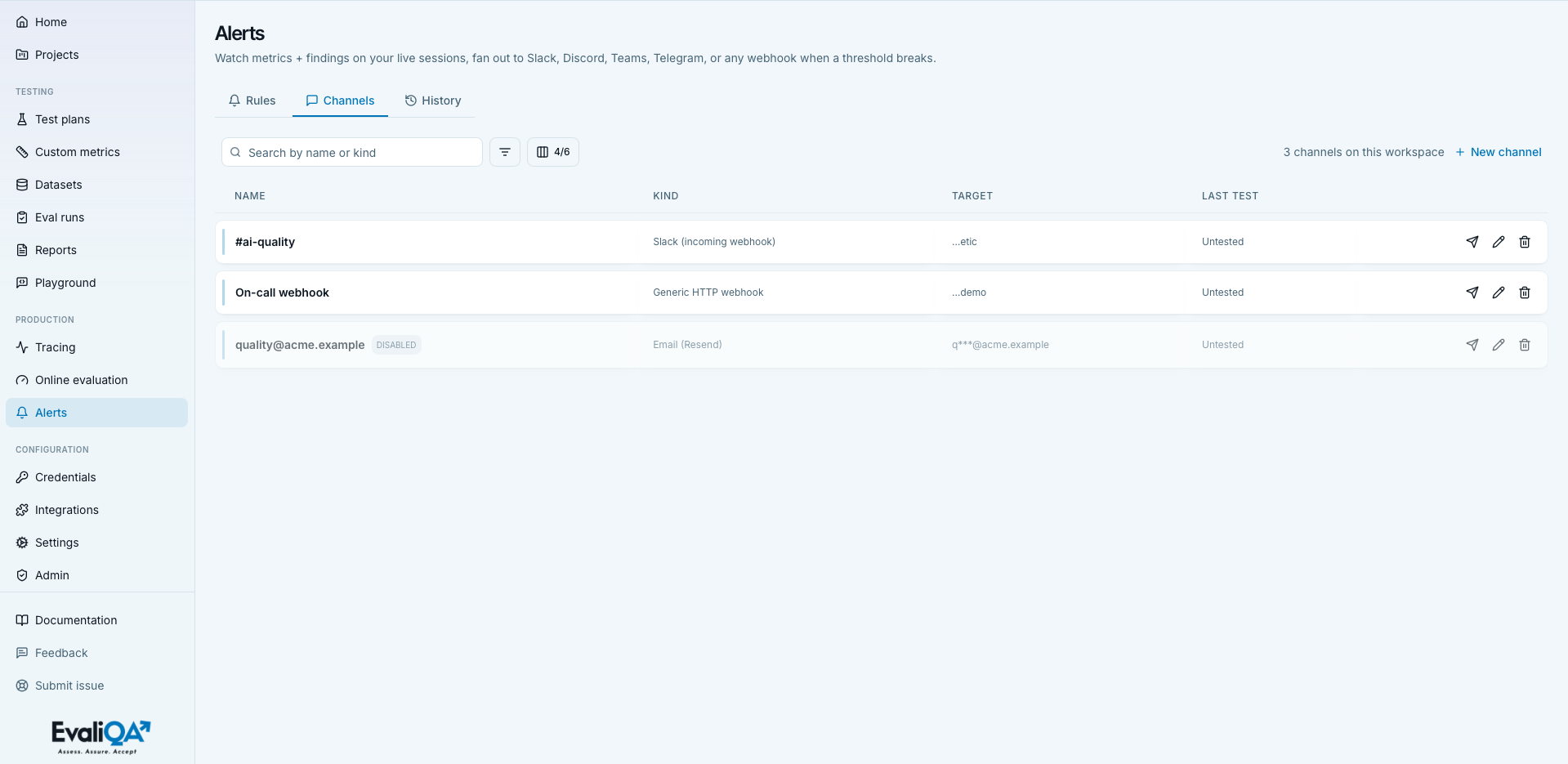
1. Add a channel
Channels are workspace-wide, so one #prod-alerts hook serves every
project. Channels tab → New alert channel, pick a kind:
| Kind | What you paste | What arrives |
|---|---|---|
| Slack (incoming webhook) | The incoming-webhook URL | A message with the title, project, body, deep link, and rule name |
| Discord (incoming webhook) | The webhook URL | The same, as a Discord message |
| Microsoft Teams (incoming webhook) | The connector URL | A card with the same fields |
| Telegram (bot API) | Bot token and chat_id (@channel or a numeric id) | A message from your bot |
| Generic HTTP webhook | Any URL, plus optional headers as JSON for a signature or a bearer token | A JSON POST with the full payload: rule name, severity, title, body, project, deep link |
| Email (Resend) | A recipient address | An email with [SEVERITY] title as the subject |
Every channel has a Test action that sends a synthetic alert and records the outcome in the Last test column. Do that before you trust it with a real one. Webhook URLs and bot tokens are stored encrypted; the list shows only a hint of the target.
2. Create a rule
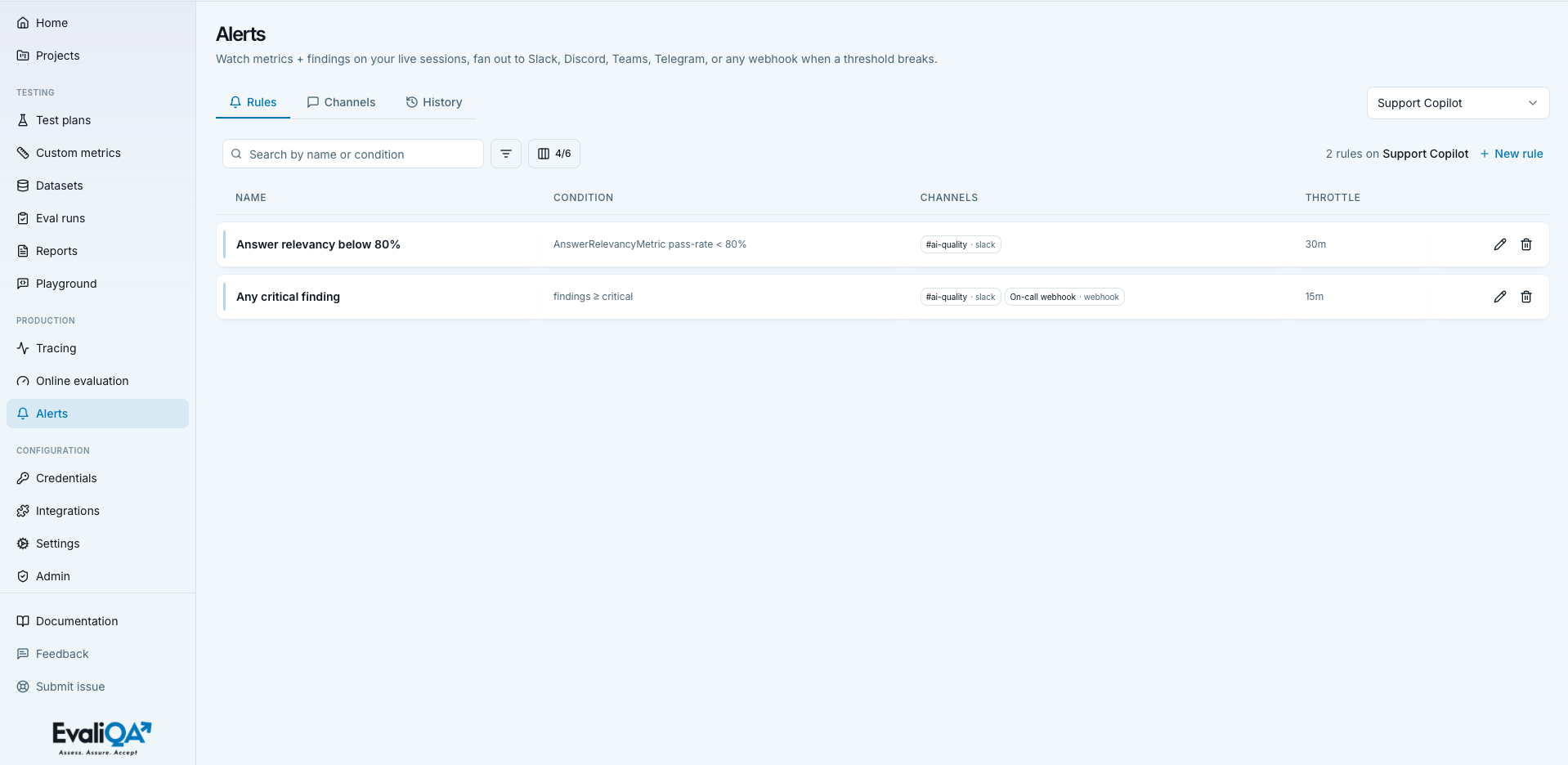
Rules are per project. Pick the project on the toolbar, then Rules tab → New rule:
- Name: the first thing a reader sees in the message, so say what it
means.
answer-relevancy < 70%beatsrule 3. - Condition, one of three:
- Metric pass-rate below… a metric and a threshold from 0 to 1. Fires when the session's pass rate on that metric (traces that passed over traces scored) drops below the threshold.
- Metric mean-score below… a metric and a threshold. Fires when the session's mean score on that metric drops below it.
- Finding severity ≥…
info,warn, orcritical. Fires when the session analysis produced at least one finding at that severity or above, from the detectors or the AI Analyst.
- Channels: one or more. A channel that's disabled or deleted at fire time is recorded as skipped, not failed.
- Throttle: the minimum minutes between two firings of this rule,
0 to 1440. The default, 15, is enough to turn a bad deploy into one
message instead of forty.
0disables throttling.
Rules can be disabled without deleting them; the Status column shows which are live.
When a rule fires
Every rule on the project is checked once per session, at the end of that session's analysis, 60 seconds after its last trace. The check sees the merged picture: conversation metrics, the per-trace metric scores, and every finding.
The alert's own severity comes from how badly the threshold was missed:
a value below half the threshold is critical, otherwise warn. For a
findings rule it's the highest severity among the matching findings.
The deep link goes to the one trace that caused it when there is exactly one, the single failing trace on a metric rule or the single trace all matched findings point at, and to the session otherwise. The channel renders it as Open trace or Open session.
What a chat channel receives:
*answer_relevancy pass-rate 40% below 70%*
Project: support-bot
Session 3f1c… scored 2/5 on answer_relevancy.
Open session: https://<your-evaliqa-host>/runtime-eval/sessions/3f1c…
Rule: answer-relevancy < 70%
The first line carries a severity marker in front of the title, so a
critical stands out from a warn in the channel.
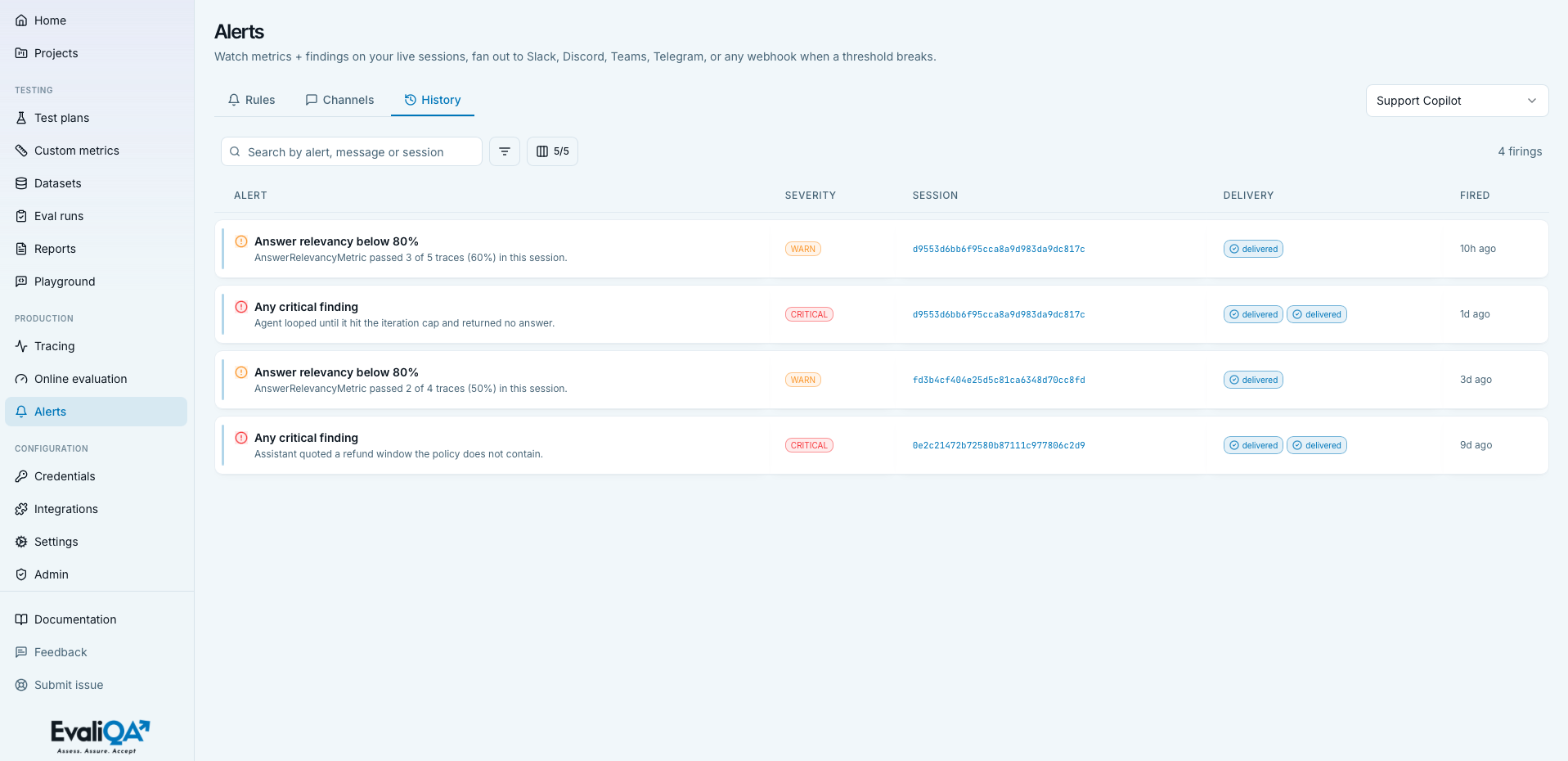
3. Read the history
History tab, per project: Alert, Severity, Session,
Delivery, Fired. Delivery is per channel: delivered, failed with
the transport's reason (HTTP 404, network error), or skipped. Filter
by delivery status to find the channel that silently broke.
Self-hosted notes
- Channel secrets are encrypted with
ALERTS_ENCRYPTION_KEY. Leave it empty and the Alerts feature is disabled entirely. - Deep links are built from
APP_BASE_URL. Set it to the URL your team opens, not the container's. - Email goes out through Resend, using the same
RESEND_API_KEYas invitations and password resets.
Related
- Online evaluation, the scores and findings rules watch.
- Explore sessions and traces, where the deep links land.