Add your first LLM credential
Store an API key for OpenAI, Anthropic, Google, or any of 100+ providers so EvaliQA can run evaluations on your behalf.
Last updated 2026-08-28
Before EvaliQA can score anything, it needs a way to talk to a model on your behalf. A credential is your API key for one provider (OpenAI, Anthropic, Google, a self-hosted endpoint, …) saved into EvaliQA. You add a credential once and reuse it across every test plan, eval run, and live evaluation.
The screencast (1:02) adds an OpenAI key and picks the models it covers.
EvaliQA never ships with its own provider keys. You bring the key, you pay the provider directly, and quota / rate limits stay in your control.
A key is optional. Every workspace starts with 5,000 platform credits, and if you chose Use my bonus credits at sign-up the judge, generation and every other AI operation run on the platform model: no credential step in the checklist, no judge step in Quick Eval or the wizard. Add a credential when you switch the Platform AI agent to your own key (Settings → Platform AI agent). See Billing and plans.
Where credentials live
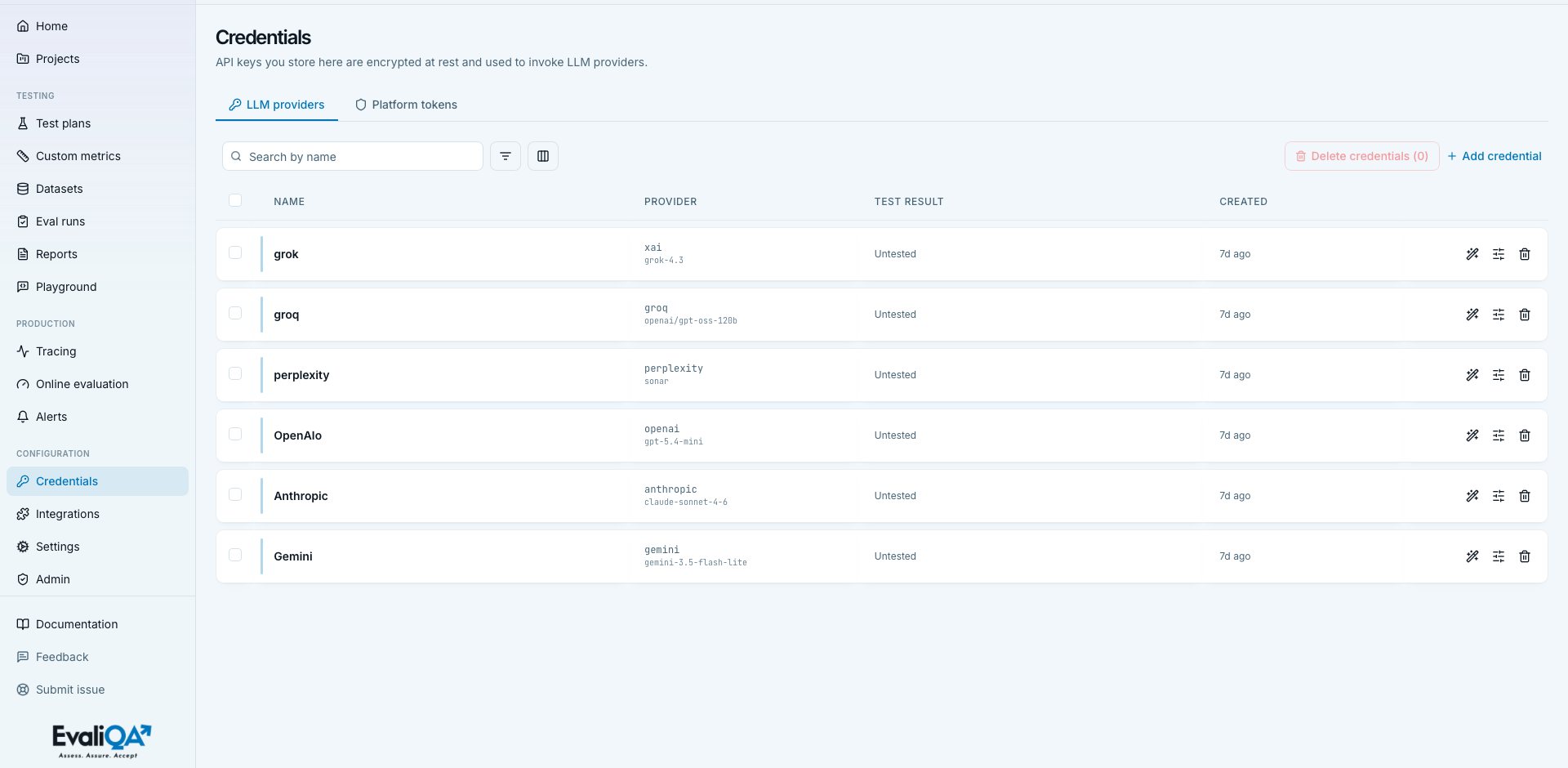
Click Credentials in the sidebar (or open /credentials). The page has three tabs:
- LLM providers: API keys for chat models (OpenAI, Anthropic, Google, and 100+ more). This is the tab you want for a first credential.
- Voice (telephony / STT / TTS): Twilio, Deepgram, Whisper, ElevenLabs, OpenAI TTS. Only shown when voice eval is enabled in your workspace. See Voice credentials below.
- Platform tokens: workspace CI/CD tokens and per-project SDK tracing keys. These are keys EvaliQA issues to you, not keys you paste in. Left alone until you're wiring up CI or the SDK.
What LLM credentials are used for
Once saved, an LLM credential can power any of these:
- Running an eval: calling the model you're evaluating during a run.
- LLM-as-a-judge: scoring answers when you use an LLM-based metric.
- Dataset generation: the Platform AI agent uses your credential to synthesise realistic test inputs from a project description.
- Trace analysis: reviewing live traces and flagging patterns.
- Auto-analysis of eval results: reading a finished run and suggesting what to fix next.
The exact set depends on how the credential is wired in, most people start with one credential that plays every role.
Add your first LLM credential
If you came here from the Welcome checklist, the Add LLM credential drawer opens automatically. Otherwise, hit the Add credential link in the top-right of the toolbar (or the button in the empty-state card if this is your first one).
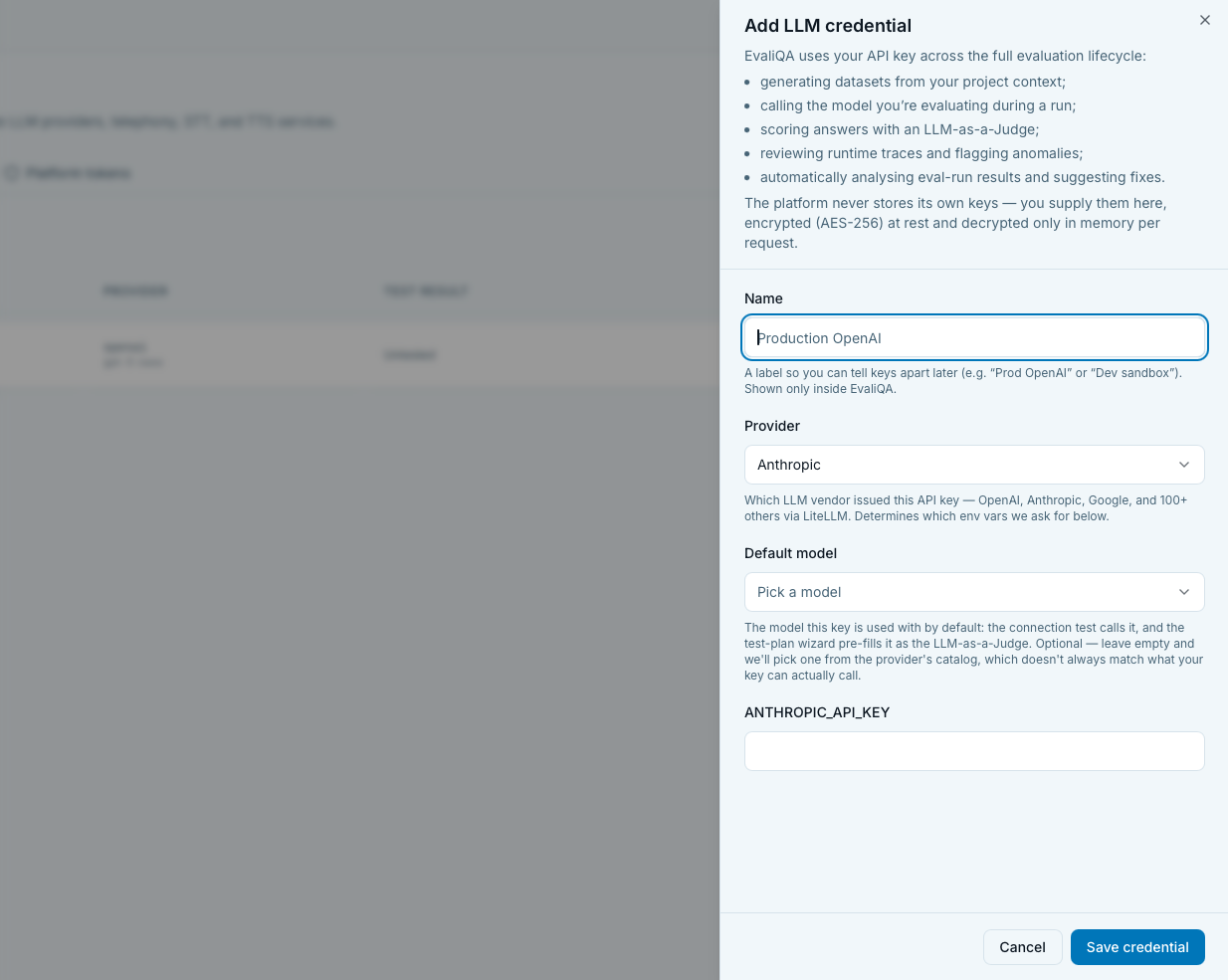
The drawer slides in from the right with three groups of fields:
1. Name
A human-friendly label, for example Production OpenAI, Dev sandbox, or
anthropic-team-billing. Max 120 characters. This name is what you'll pick
from dropdowns later when choosing a credential inside a test plan or the
Platform AI agent settings, so make it recognisable at a glance.
2. Provider
A searchable dropdown of every provider EvaliQA knows about. The default set includes:
- OpenAI, Anthropic, Google (Gemini), Groq, xAI (Grok), Cohere, Mistral, DeepSeek, Together, HuggingFace, plus every other LiteLLM-supported chat provider, 100+ in total.
- Ollama: for self-hosted open-source models.
- MLX: for local Apple-silicon inference.
- Custom: any OpenAI-compatible endpoint (a private Azure OpenAI deployment, an in-house proxy, a fine-tune hosted behind your own API).
Picking the provider decides which secret fields appear below.
3. Secrets
The drawer generates a form based on the provider you picked. Every provider
asks for slightly different values, the label of each field is the exact
env-var name the underlying library expects, so it's easy to copy from a
.env file:
- OpenAI →
OPENAI_API_KEY - Anthropic →
ANTHROPIC_API_KEY - Google →
GOOGLE_API_KEY - Groq →
GROQ_API_KEY - xAI →
XAI_API_KEY - Ollama →
OLLAMA_API_BASE_URL(no key, just the URL of your server) - Custom →
CUSTOM_LLM_API_KEYandCUSTOM_LLM_BASE_URL
Fields are rendered as password inputs, nothing is shown in the clear.
Save
Click Save credential. The drawer closes and the new row appears at the top of the list. If the provider or a required env var is missing, you'll see the error inline in the drawer, the credential is only created on a successful save.
The Platform AI agent prompt
If this was your first LLM credential during onboarding, a second sheet opens right after saving: "Use as your Platform AI agent?"
The Platform AI agent is the model EvaliQA calls in your workspace for every AI operation you could run on a key of your own:
- LLM-as-a-Judge scoring in eval and voice runs.
- Dataset generation from a project description.
- Adaptive multi-turn simulation: the AI user that talks to your agent in dialogue evals.
- Trace analysis: pattern-finding across live traces.
By default it runs on the platform model, paid in credits. Setting it to your credential moves all of the above onto your key: EvaliQA warns you that they are then at your expense and that results may vary with the models you pick, and the judge pickers come back in every flow.
Pick a model from the dropdown (only flagship "thinking" models are shown by default, you don't want to wire dataset generation to a tiny chat model) and click Set as Platform AI agent. Or click Skip for now and choose later in Settings → Platform AI agent.
Test a credential
On the list, every row has a Test action (wand icon on the right). Click it to fire a real one-shot call to the provider and see the result inline in the Test result column:
- OK: a green check plus a short response and latency, e.g.
5+7 is 12 (223ms). The key works. - Failed: a red X plus the provider's error message. Common causes: invalid key, exhausted quota, wrong org id, unreachable base URL for Ollama/Custom.
- Untested: the default state before you press the button.
Testing is free-ish for major providers (uses a cheap model like gpt-4o-mini
or claude-haiku), but it does consume a few tokens on your account. Rerun
it any time you rotate a key or suspect something's off.
Supported providers
The LLM tab pulls its list live from eval-ai-library, so as new providers land in the library they appear here without an EvaliQA release. Broad categories today:
- Hosted commercial: OpenAI, Anthropic, Google, Groq, xAI, Cohere, Mistral, DeepSeek, Together, HuggingFace, Fireworks, Perplexity, and more.
- Enterprise / cloud: Azure OpenAI, AWS Bedrock, Vertex AI (via their respective LiteLLM connectors, pick the corresponding provider in the dropdown and fill in the env vars).
- Self-hosted / local: Ollama, MLX, plus Custom for any OpenAI- compatible endpoint.
If your provider isn't in the dropdown but exposes an OpenAI-compatible API, use Custom.
Voice credentials
If your workspace has voice eval enabled, the Voice tab lets you add credentials for the parts of the voice stack:
- Twilio: outbound calls (needs
TWILIO_ACCOUNT_SID,TWILIO_AUTH_TOKEN,TWILIO_PHONE_NUMBER). - Deepgram or OpenAI Whisper: speech-to-text.
- ElevenLabs or OpenAI TTS: text-to-speech.
Same drawer, same rules, pick a provider, name the credential, paste the secrets, save. Voice credentials do not participate in the Platform AI agent prompt.
Managing the list
The Credentials page has the same toolbar as the rest of the platform:
- Search: filter by name as you type.
- Filter: build one or more rules (Name contains / equals, Provider equals) to narrow the list.
- Columns: toggle Provider, Test result, Created, Last updated, ID. Name is always visible.
- Bulk delete: tick multiple rows and hit Delete credentials (N) in the toolbar.
Rotate or replace a key
Provider APIs sometimes issue you a new key or force a rotation. EvaliQA doesn't have an in-place Edit for secrets, the flow is:
- Add a new credential (same provider, different name, new key).
- Test it and confirm it works.
- Point any test plan or the Platform AI agent at the new credential (dropdowns in Settings → Platform AI agent and inside each test plan).
- Delete the old credential.
Doing it in this order means live workloads never see a broken key, you switch to the new one first, then remove the old one.
Delete a credential
Click the trash icon on a row (or select several and use the toolbar Delete credentials button). A confirmation sheet appears with a cascade summary:
- the encrypted secret and its last-test status are removed,
- any test plan or Platform AI agent config still referencing the credential will start erroring with "credential not found" on the next run.
Historical eval runs and traces stay put, deleting a credential does not delete the rows already scored with it.
Common problems
Test says "Failed: invalid API key" but the key works in curl.
Most often the key was copy-pasted with leading/trailing whitespace or a
missing character. Reopen the drawer for a fresh credential, paste again,
save, and re-test. For Custom provider, also double-check the base URL,
usually the root of the endpoint without a trailing /v1.
Ollama credential fails with a network error.
The URL you paste has to be reachable from the EvaliQA server, not from
your laptop. If Ollama runs on localhost, that means localhost on the
EvaliQA host; from inside our docker-compose stack it usually needs to be
your host's LAN IP (e.g. http://host.docker.internal:11434 on Mac/Windows).
Platform AI agent dropdown is empty after picking a provider. The model list is filtered to flagship "reasoning-tier" models by default, if the provider doesn't publish one that fits, nothing shows. Skip the prompt and set it later in Settings → Platform AI agent, where you can toggle Show all models and pick any of the provider's models manually.
"credential not found" on a run right after deleting. Something still points at the old credential's UUID. Open the offending test plan (or Settings → Platform AI agent) and pick the replacement credential.
What's next
You have a credential; EvaliQA can talk to a model on your behalf. The next step is a home for your evaluation work, see Create your first project.