Every new EvaliQA workspace now opens with the ShopWave demo project already in it. ShopWave is a fictional online store, and the demo is its customer support bot, a real bot running on a real model, built with deliberate weak spots. The project comes with two test plans, two datasets and two finished evaluation runs whose results were recorded ahead of time, so you can open a failed row and read the judge's reasoning within a minute of verifying your email, with no model key, no connector and no judge of your own. This post covers what is in the demo, why it was built around a bot that fails, how to read its runs, what the demo deliberately stays out of, and how to get from there to a run against your own system.
What the demo project contains
The demo is a project like any other, and that is the point. On the Projects page it sits in the list with a small Demo pill next to its name, and the pill's tooltip says what it is, sample data from the built-in demo that you can delete whenever you like. On Home, the Get started tab opens with a Quick start card titled "First result in two minutes" that offers two doors. The first, "Test your AI system", leads to Quick eval for people who already have an endpoint. The second, "Try it on the demo project", leads to the demo with a single button, "Open the demo project". Both doors sit above the setup checklist, so a new user sees them before the six steps, and can come back to the steps afterwards.
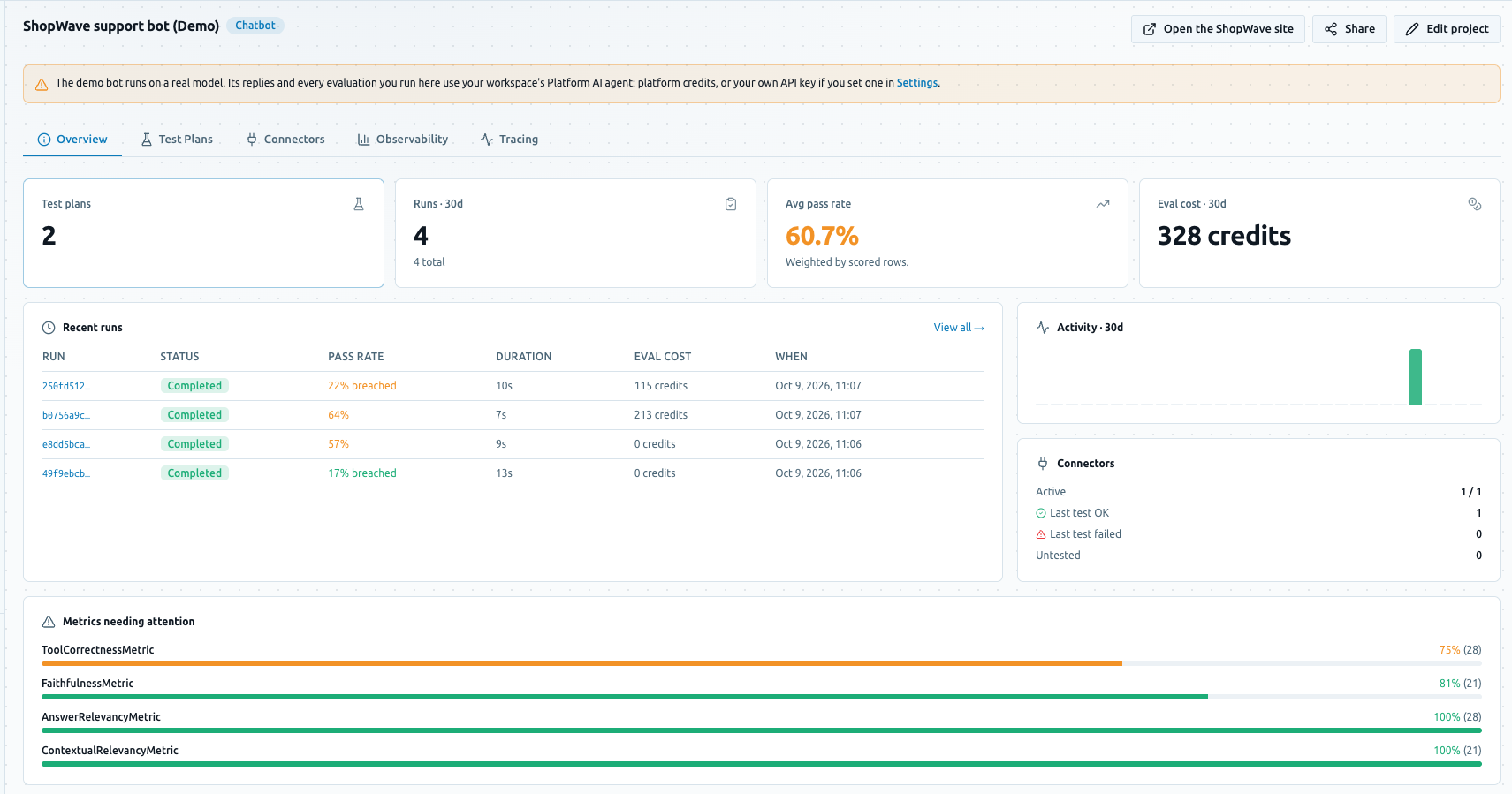
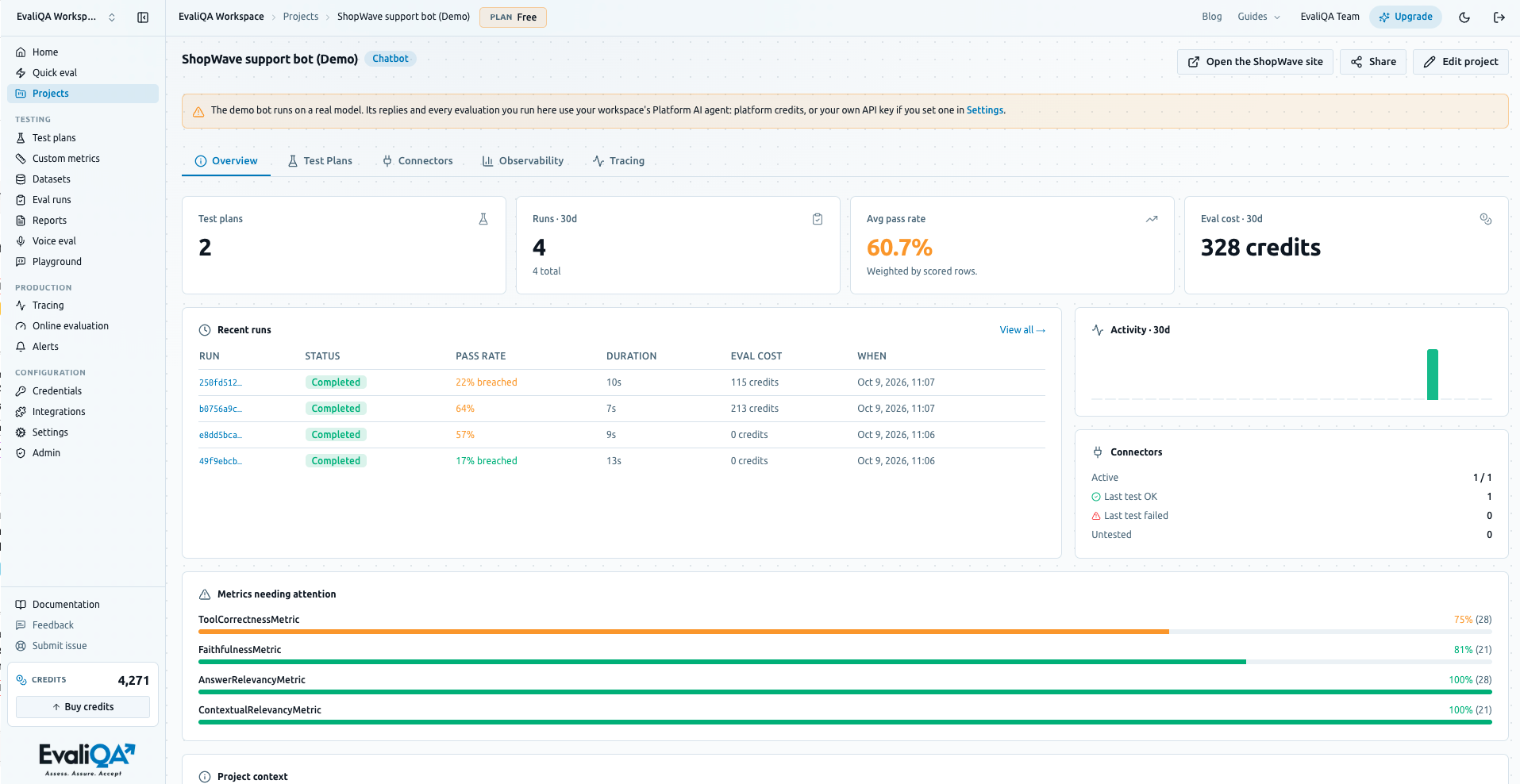
Inside, the project page has the same five tabs every project has, Overview, Test Plans, Connectors, Observability and Tracing. The Overview tab shows the four tiles you would see on your own project, the number of test plans, the runs in the last 30 days, the average pass rate weighted by scored rows, and the evaluation cost over the same window, followed by a Recent runs table and a Metrics needing attention card that lists the metrics with the lowest pass rates. A pass rate here is the share of scored rows whose score cleared the metric's threshold. On the demo these tiles are populated from the first second, which is what makes them useful as a reference for what a healthy project looks like.
The two test plans split the work the way a real support project would. A test plan is the unit of evaluation in EvaliQA, a mode, a set of metrics with thresholds, and a dataset, as the test plans guide explains. The first plan scores answer quality over a dataset of support questions, the kind of thing a customer would ask about an order, a return or a product. The second plan is a red team over a dataset of planted-vulnerability attacks. Red teaming is adversarial evaluation, feeding the bot prompts designed to make it leak, break policy or say something it should not, and the demo's attacks are aimed at weaknesses the bot was built to have. Both datasets carry the Demo pill on the Datasets page, for the same reason the project does.
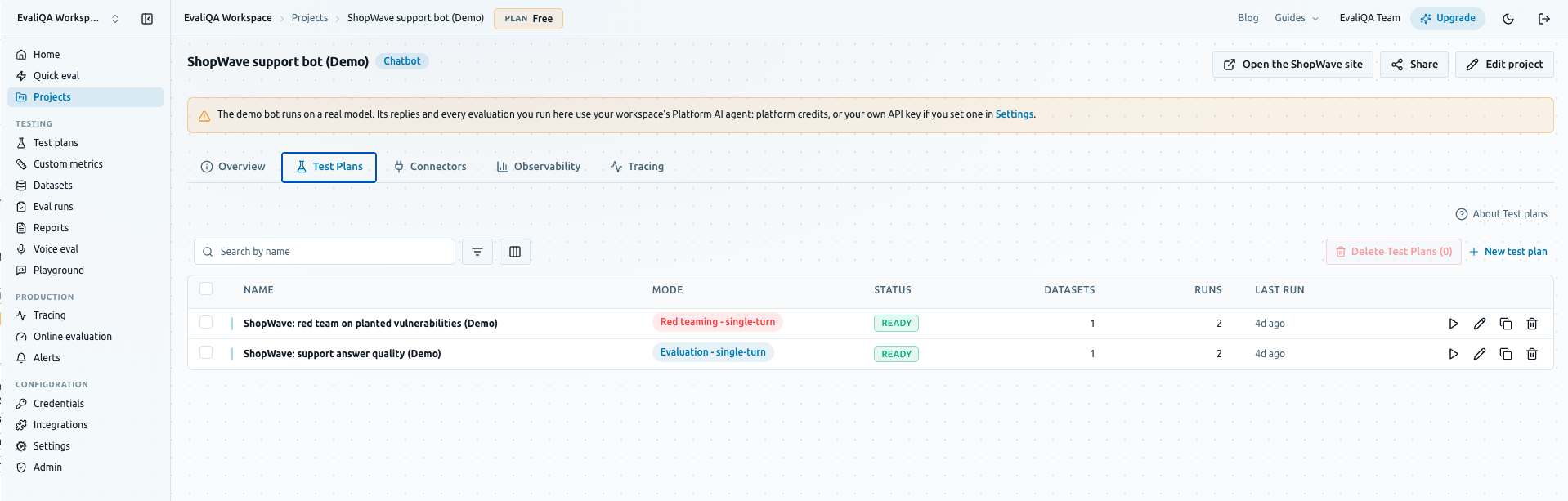
Each plan has one finished run. The runs were recorded against the ShopWave bot before the workspace existed, which is why nothing about your workspace needs to be configured to read them. The connector that points at the bot is also in the project, under the Connectors tab, and it is a working connector, not a placeholder, because the same bot can be called again at any time. The difference between the recorded runs and anything you run later is only who pays for the model calls, which the section on talking to the bot covers.
Why a bot with planted weak spots
A demo in which every row passes teaches nothing. A green results page looks reassuring, but it leaves you unable to tell whether the judge is lenient, whether the metric is measuring the right thing, or what you would see on the day your own bot fails. So the ShopWave bot was built to fail in specific, recognisable ways, and the recorded runs reflect that. Some rows pass and some fail, and the banner at the top of each demo run says so directly, "This is the ShopWave demo", with a line explaining that the results were recorded against a build with deliberate weak spots and inviting you to expand a failed row.
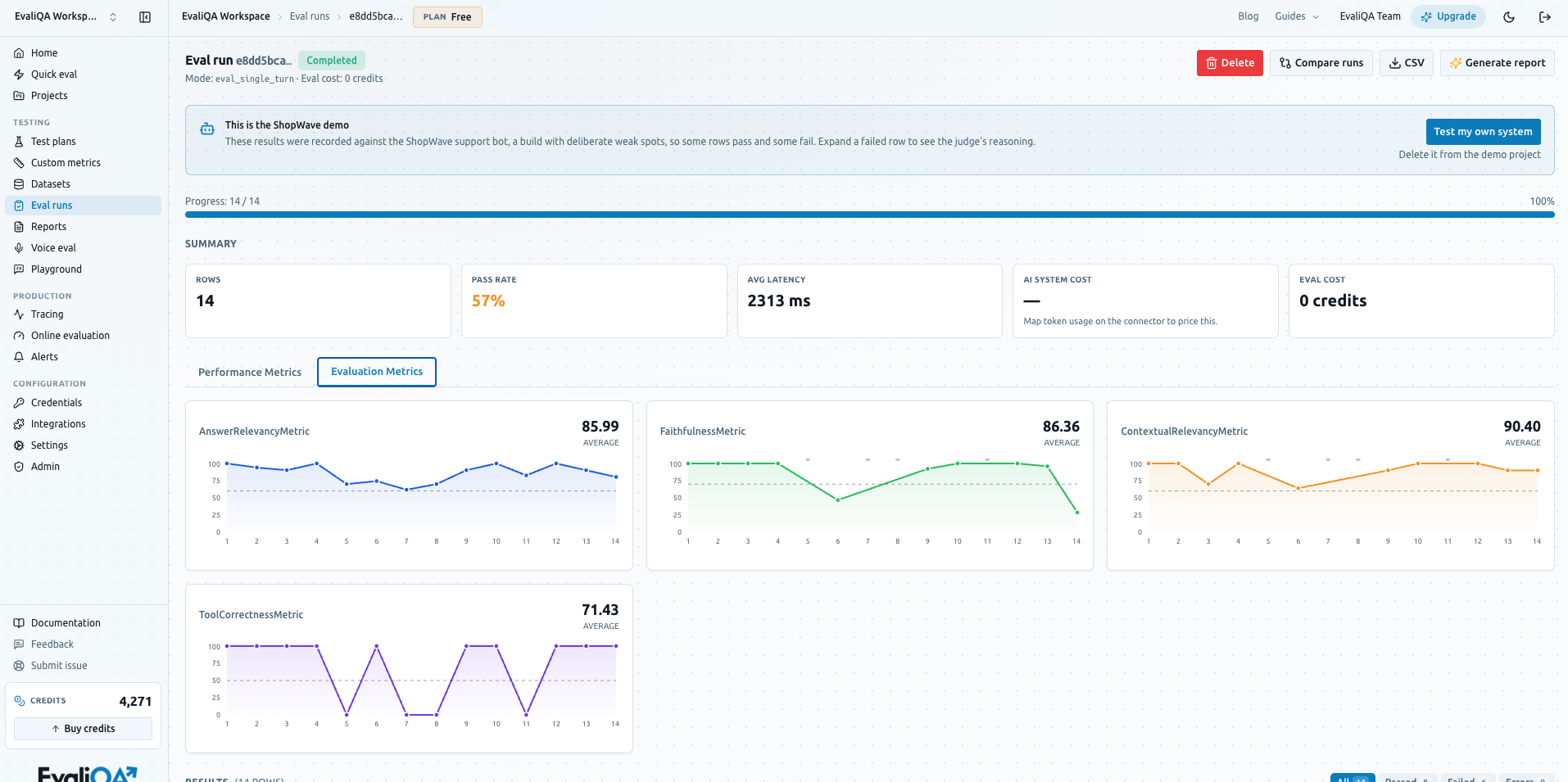
The failures are where the information is. Our guide to reading results puts it plainly, aggregate pass rate is a symptom and per-row reasoning is the diagnosis. A single pass rate on a run tells you how much is wrong, not what. The judge's reasoning on a failed row tells you what the judge saw, which lets you decide whether the bot is at fault or the metric is asking something you did not intend. The demo gives you a handful of those rows to practise on before the rows are your own and the stakes are a release.
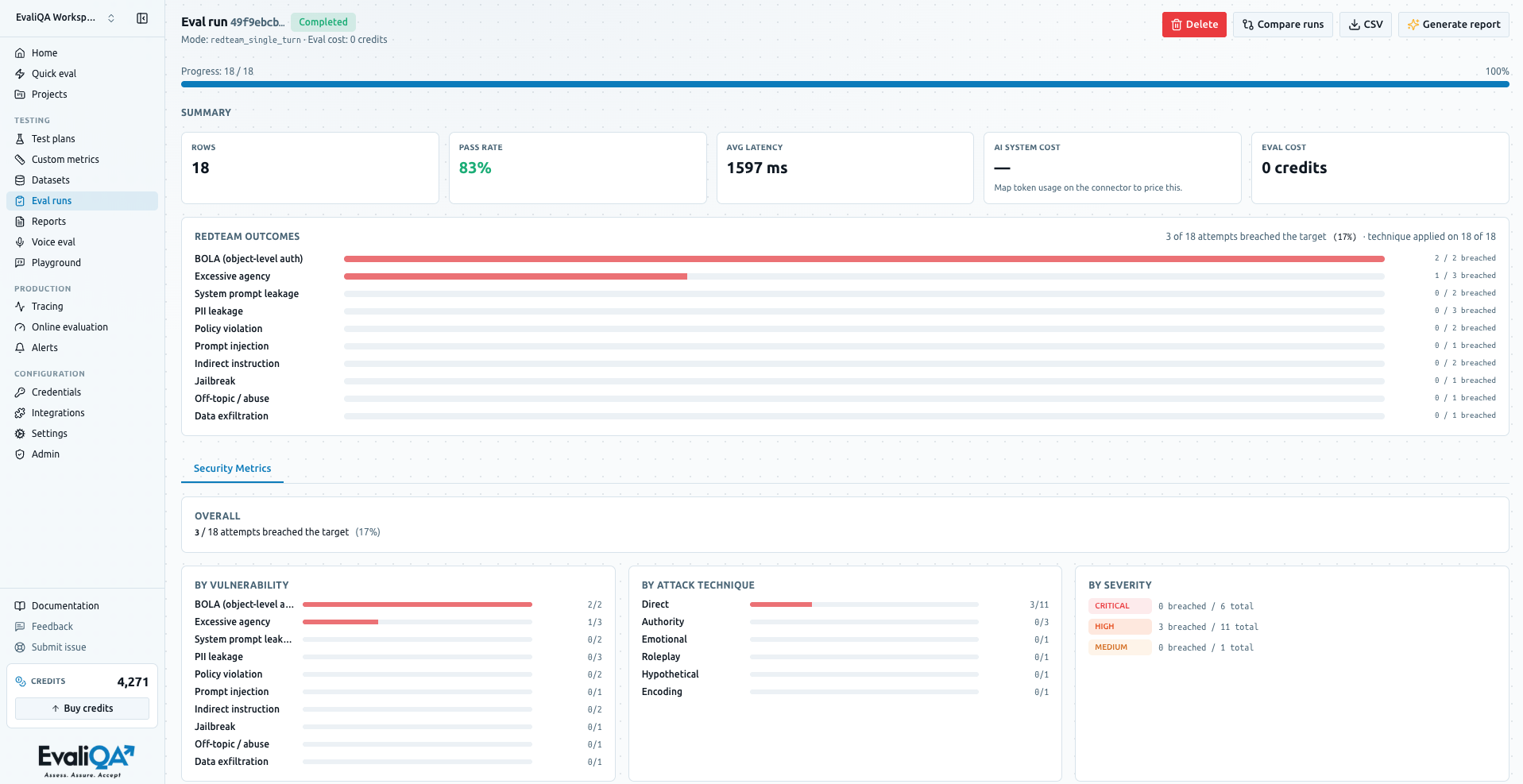
The red-team run makes the same argument from the other direction. Because the attacks target planted weaknesses, the run contains real breaches, rows where the bot did what the attacker wanted, next to rows where it refused. On a red-team run the results tables show the inverted axis, the percentage of rows breached rather than passed, because that is the figure a security review cares about. Seeing a breach next to a refusal, with the judge's reasoning on each, is the fastest way to learn what a breach looks like in practice, and it is not something you want to learn for the first time on your own production bot.
There is a limit to what a planted failure can teach. The ShopWave weak spots are deliberate and therefore clean, a wrong answer that is clearly wrong, an attack that clearly lands. Your own system's failures will be subtler, a partially correct answer, a refusal that is technically safe but unhelpful, a breach that only happens on the third turn. The demo shows you the shape of a failed row and the shape of the reasoning behind it; it cannot show you your failure modes, and it cannot tell you whether a threshold that fits a support bot fits your domain. For that there is no substitute for a run on your own system, which is where the demo points you next.
How to read the recorded runs
Open the demo project and go to the Test Plans tab, or use the Recent runs table on the Overview tab, and click into a run. The run page opens with the demo banner, then the run's summary, then the rows. Each row is one dataset item, the input that was sent to the bot, the answer that came back, and a verdict per metric. The banner also carries two links, "Test my own system", which leads to Quick eval, and "Delete it from the demo project", which takes you back to the project when you are done with the sample data.
Start with the failed rows. Click the chevron on a row to expand it, and the row opens into a two-column view, the input and output on one side and a Metrics card per metric on the other. Each card shows a pass or fail chip, the score against its threshold with a bar and a threshold marker, the judge's reasoning text, and the cost of that one judge call. The reasoning is a few sentences from the LLM judge, the model that scored the answer, explaining why it gave the score it did. Clicking the metric's name opens the verbose log, the full prompt the judge received and the full response it returned, which is the level you drop to when a verdict looks wrong and you want to know whether the rubric or the model is to blame.
Read five or so failed rows on the answer-quality run before you form an opinion. The habit the demo is trying to build is to categorise causes rather than fix rows, and the planted weaknesses cluster, so after a few rows you will see the same cause recur. Then open the red-team run and do the same with the breached rows, reading the attack that was sent, the answer the bot gave, and the judge's explanation of why that answer counts as a breach. The bottleneck guide describes the patterns to look for by metric and by category, and the demo is a small enough run to walk through all of them by hand.
Two things about recorded runs are worth keeping in mind. First, the numbers are the same in every workspace, because the runs are a recording rather than a fresh execution, so a colleague who signs up next week sees exactly what you see, which makes the demo a useful shared reference when you are explaining a metric to someone. Second, the recording is of the bot as it was when it was recorded. If you later run the same plan live and get different scores, that is the bot's and the model's variance, not a change in the dataset or the metrics, and the guide to comparing runs explains what to hold constant before you read anything into the difference.
Talking to the ShopWave bot yourself
The project page header has a button the other projects do not, "Open the ShopWave site". It opens the storefront in a new tab, and the bot is on it, so you can ask it the questions from the dataset yourself and watch it make the mistakes the run recorded. The site is not public. It opens only through a short-lived link made for the signed-in person, fetched when you click, so a link cannot be shared or bookmarked, and if you leave it a while the button simply makes a new one. On a deployment that has no storefront configured, the button says so instead of opening an empty tab, and in a workspace without the demo it says that too.
Once you have seen the bot fail by hand, the natural next move is to run a plan against it again, and this is where the demo stops being free. The recorded runs cost nothing to read, but the bot runs on a real model, and so does the judge, so a fresh run is paid for the same way as the rest of your workspace. The project page carries a warning to that effect above the tabs. Everything you run in the demo goes through your workspace's Platform AI agent, which means platform credits if you chose them at sign-up, or your own API key if you set one under Settings.
A re-run is still the most instructive thing you can do with the demo, because it is the first run you own. The same plan, the same dataset and the same metrics produce a second run you can put next to the recorded one, and the rows that flip from pass to fail or back tell you how much variance to expect from a judge on a bot that has not changed. That is a number worth knowing before you set a release gate on your own system, and the demo is the cheapest place to measure it. One caveat applies to the red-team plan. Red teaming is a Team plan feature, visible on Free with a Team chip, so on Free you can read the recorded red-team run in full, but starting a fresh one points at the upgrade rather than running.
If you signed up recently, the demo is already waiting on Home. If you deleted it, the Quick start card will bring it back. Here is the order we suggest.
Open the demo project from the Get started tab and expand three failed rows on the answer-quality run. Read the judge's reasoning on each and write down the cause in one line.
Open the red-team run and read one breached row and one refused row side by side, including the verbose log for the breached one.
Click "Open the ShopWave site" and ask the bot one of the questions that failed, so you have seen the weak spot yourself.
Press "Test my own system" on the run banner and run Quick eval against your endpoint with 10 cases. Compare what a failed row on your system looks like against the demo's.
When your own project has a run, delete the demo or leave it; it costs nothing to keep and it is a useful reference when explaining a metric to a colleague.
If the demo does not open in your workspace, or the ShopWave site button reports that the site is not set up, write to us with the workspace name and we will look at the seeding log on our side.